Skip to content

Text to 3D model generator for rapid 3D asset concepts

Turn written object descriptions into inspectable 3D models. NovaGen3D's text to 3D model generator takes natural language prompts and generates standard glTF 2.0 (.glb) files ready for concept evaluation, game prototyping, and 3D workflow refinement.

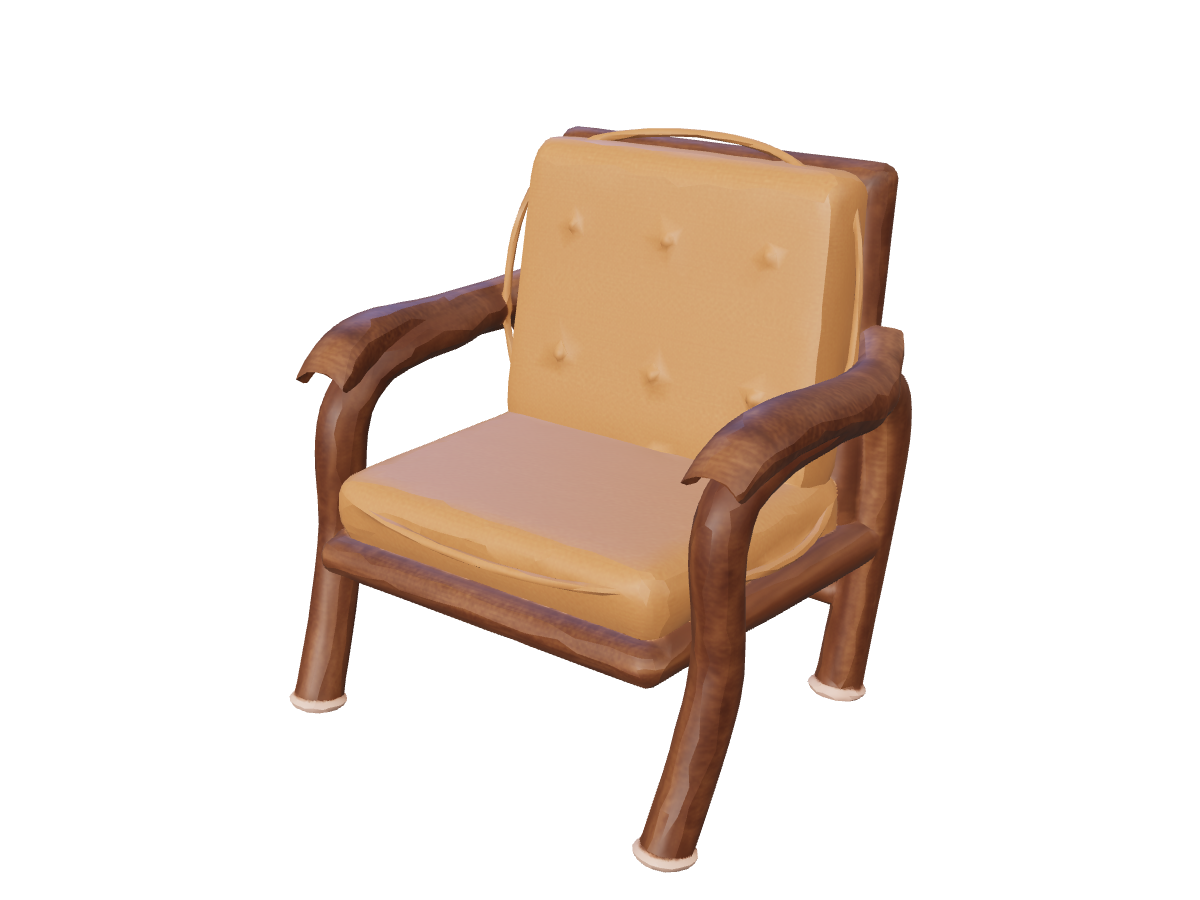
Walnut and leather lounge chair

Text to 3D workspace

Model examples

Text to 3D

0/1000

Advanced settings

ResultsNo task selected
Loading 3D preview...

Explore shapes, materials, and proportions without starting from a blank 3D viewport. Sign in to start generating with welcome credits.

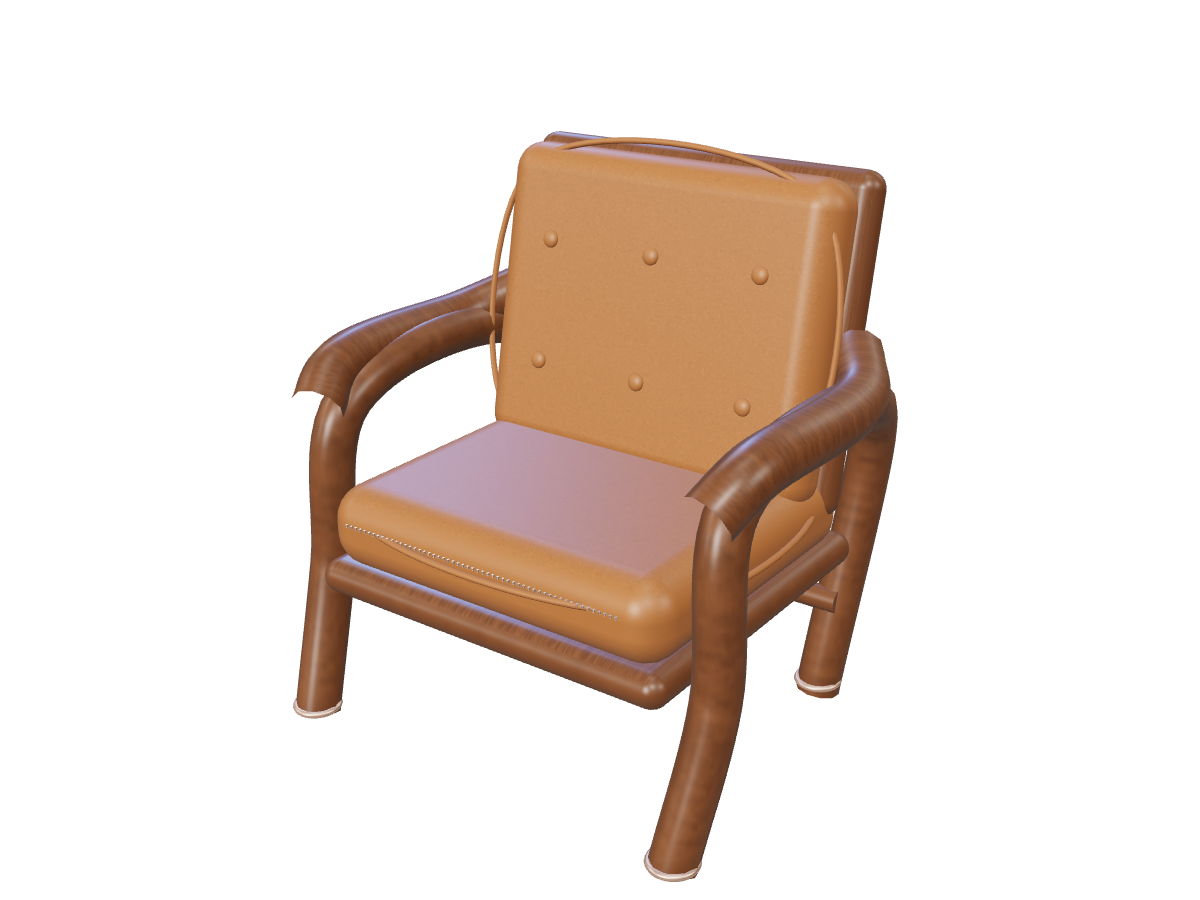
Walnut and leather lounge chair: Reconstructed model

Prompt engineering: How to describe your 3D object

Clear, structured descriptions produce the most coherent 3D geometry. For the best results, structure your prompt using four descriptive building blocks: [Primary Subject] + [Geometric Form & Proportions] + [Material & Surface Finish] + [Stylistic Details].

Object prompt examples

  • Industrial & Product Design: "A minimalist Scandinavian armchair with rounded oak armrests, tapered wooden legs, and textured charcoal linen upholstery."

  • Game Asset & Fantasy Prop: "An ornate medieval treasure chest with curved metal bands, a geometric brass padlock, and weathered dark wooden planks."

  • Sci-Fi & Concept Art: "A compact planetary exploration rover with four ribbed all-terrain wheels, an ivory composite chassis, blue instrument panels, and a camera mast."

Pro-tip: Focus your prompt on a single isolated object rather than an entire environment or background scene.
Choosing your generation mode: Quality vs. Turbo

ParameterTurbo ModeQuality Mode
Primary FocusRapid ideation and form explorationDetailed shape and surface exploration
Typical TurnaroundOptimized for fast iterationComprehensive geometric refinement pass
Mesh DensityConfigurable target face countConfigurable target face count
Best Used ForBrainstorming multiple concept variantsHero prop creation and downstream texturing

Step-by-step: From prompt to GLB download

  1. Craft your prompt: Enter up to 1,000 characters in the prompt field. Optionally attach a single image reference if you want to visually steer the form.

  2. Configure generation settings: Choose Quality or Turbo mode, and select your preferred target face-count and material style.

  3. Submit and monitor: Sign in to launch the task using your account credits. Follow task status while the service reconstructs the mesh.

  4. Inspect and export: Rotate the finished GLB model directly in your browser. Download the file for your downstream 3D pipeline.

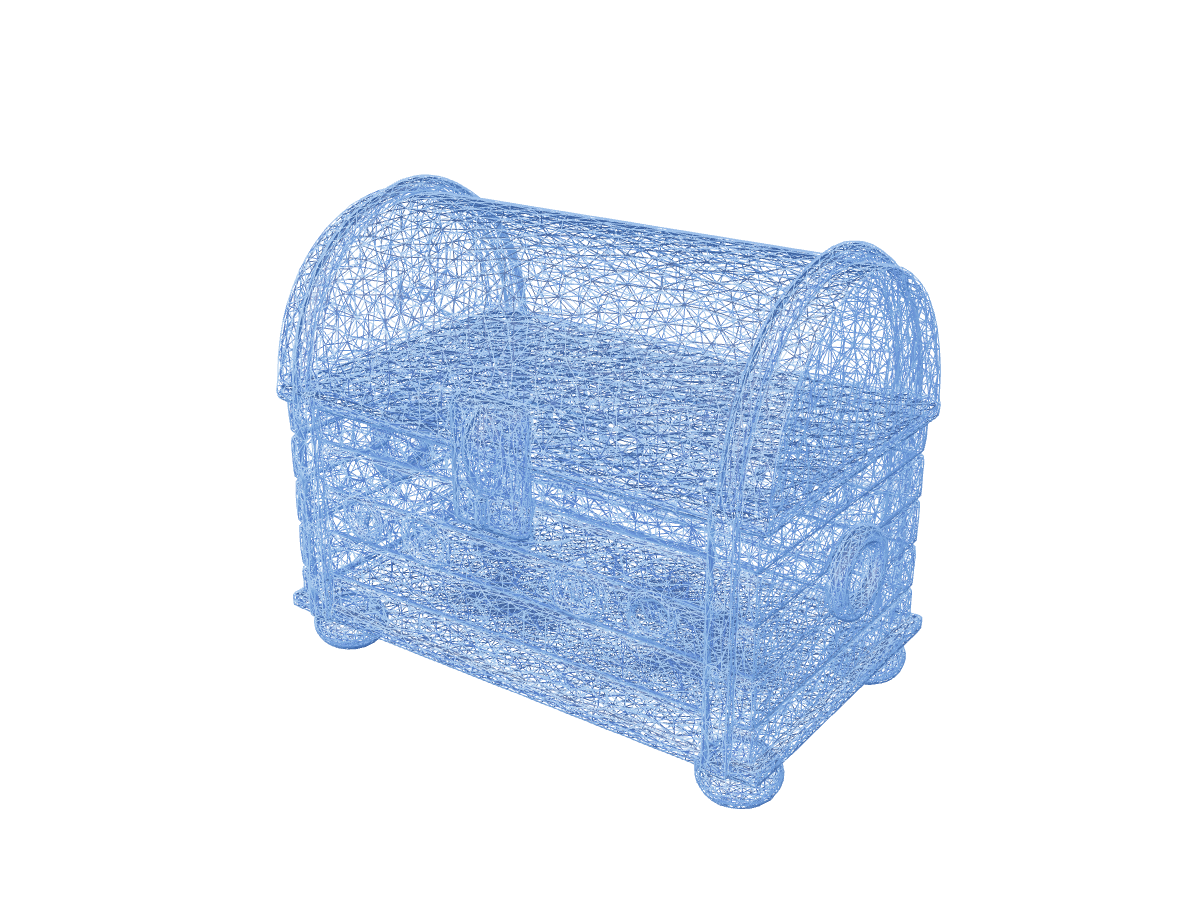
Treasure chest: material and mesh inspection: Wireframe inspection

Integrating your model into standard 3D software

NovaGen3D outputs industry-standard .glb files:

  • Blender: Use File > Import > glTF 2.0 (.glb/.gltf) to edit geometry, unwrap UVs, or add shaders.

  • Other editors & game engines: Check glTF importer support in your version of Maya, Unity, or Unreal Engine. A plugin or format conversion may be needed.

  • 3D Printing: Use our client-side GLB Converter to export an STL file scaled in millimeters for Bambu Studio, Cura, or PrusaSlicer.

  • Surface Refinement: Take your model into our AI Texture Generator to experiment with alternative visual finishes.

Walnut and leather lounge chair

Walnut and leather lounge chair: Original reference
Original reference
Walnut and leather lounge chair: Reconstructed model
Reconstructed model

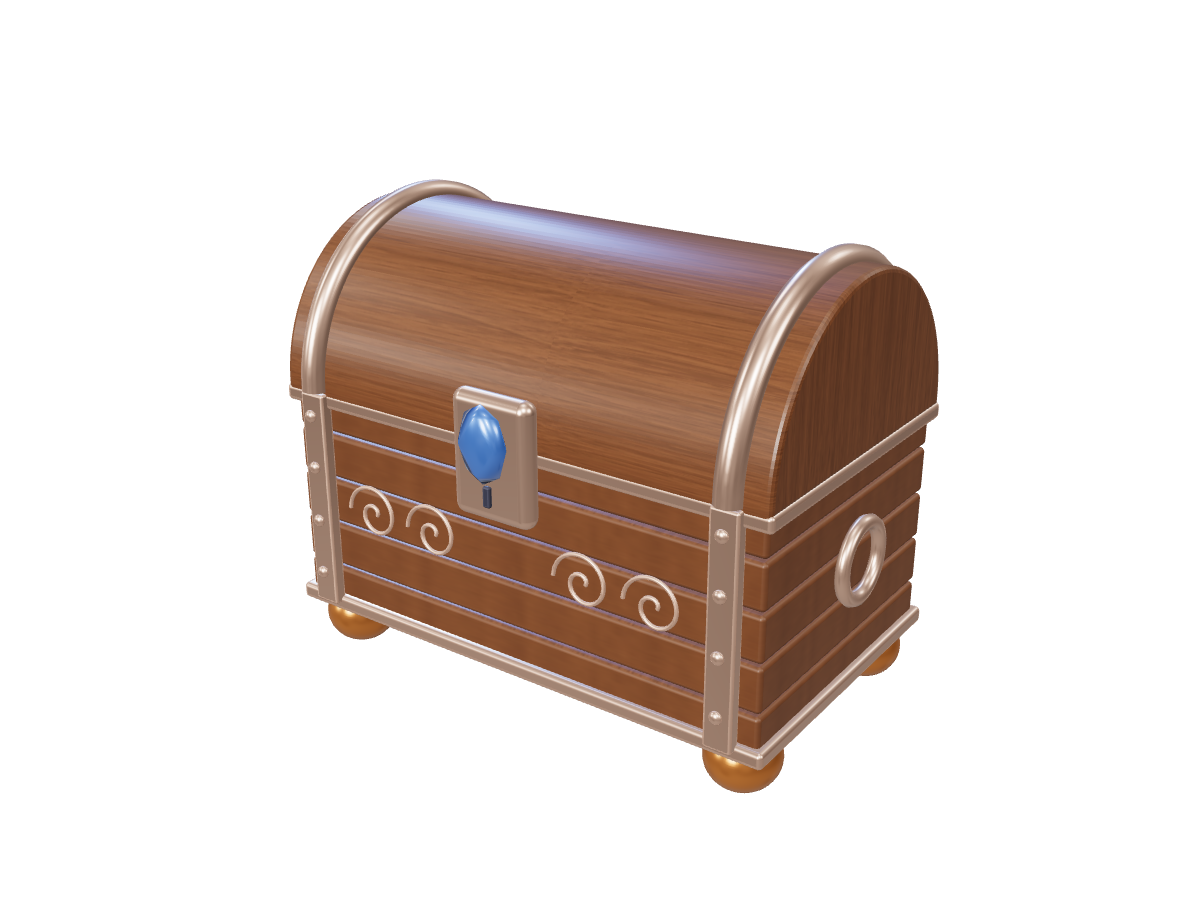
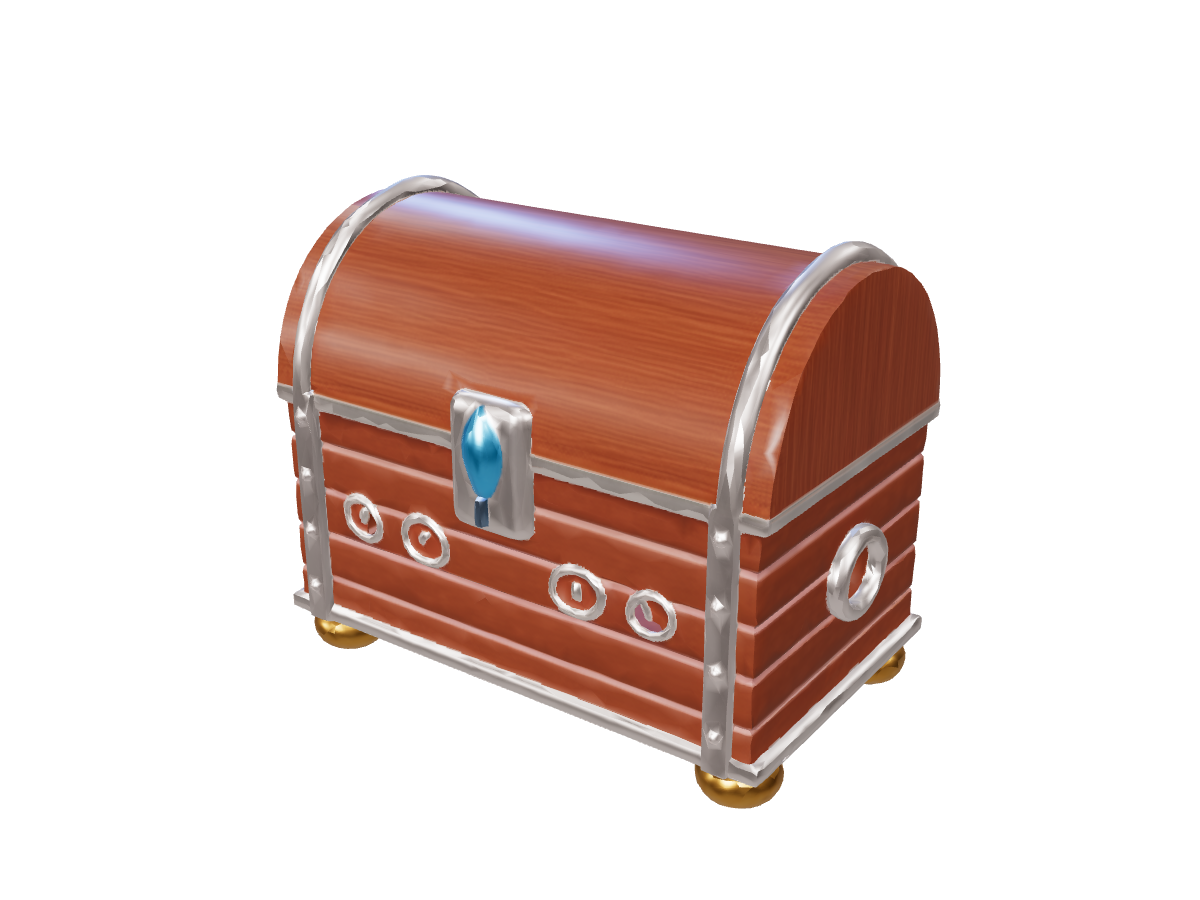
Sapphire-inlaid treasure chest

Sapphire-inlaid treasure chest: Original reference
Original reference
Sapphire-inlaid treasure chest: Reconstructed model
Reconstructed model

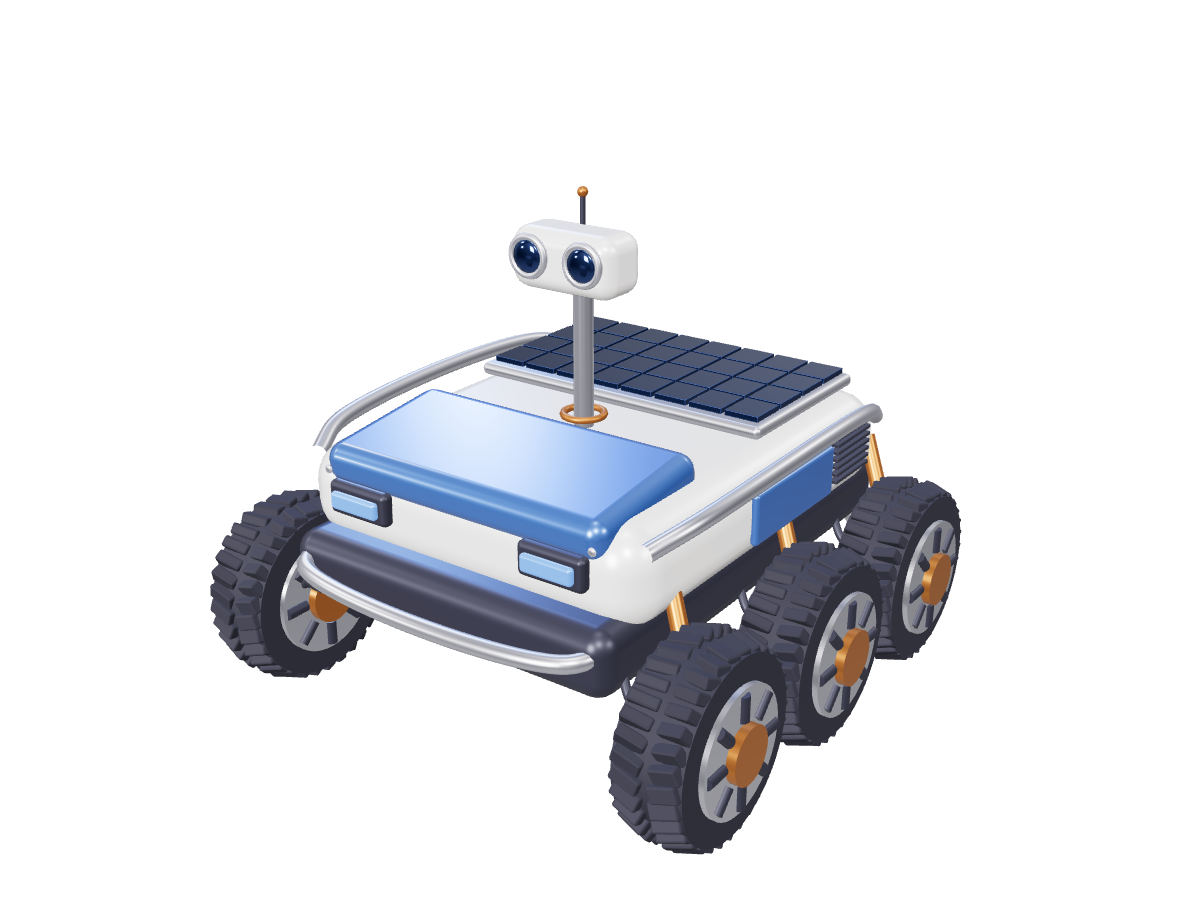
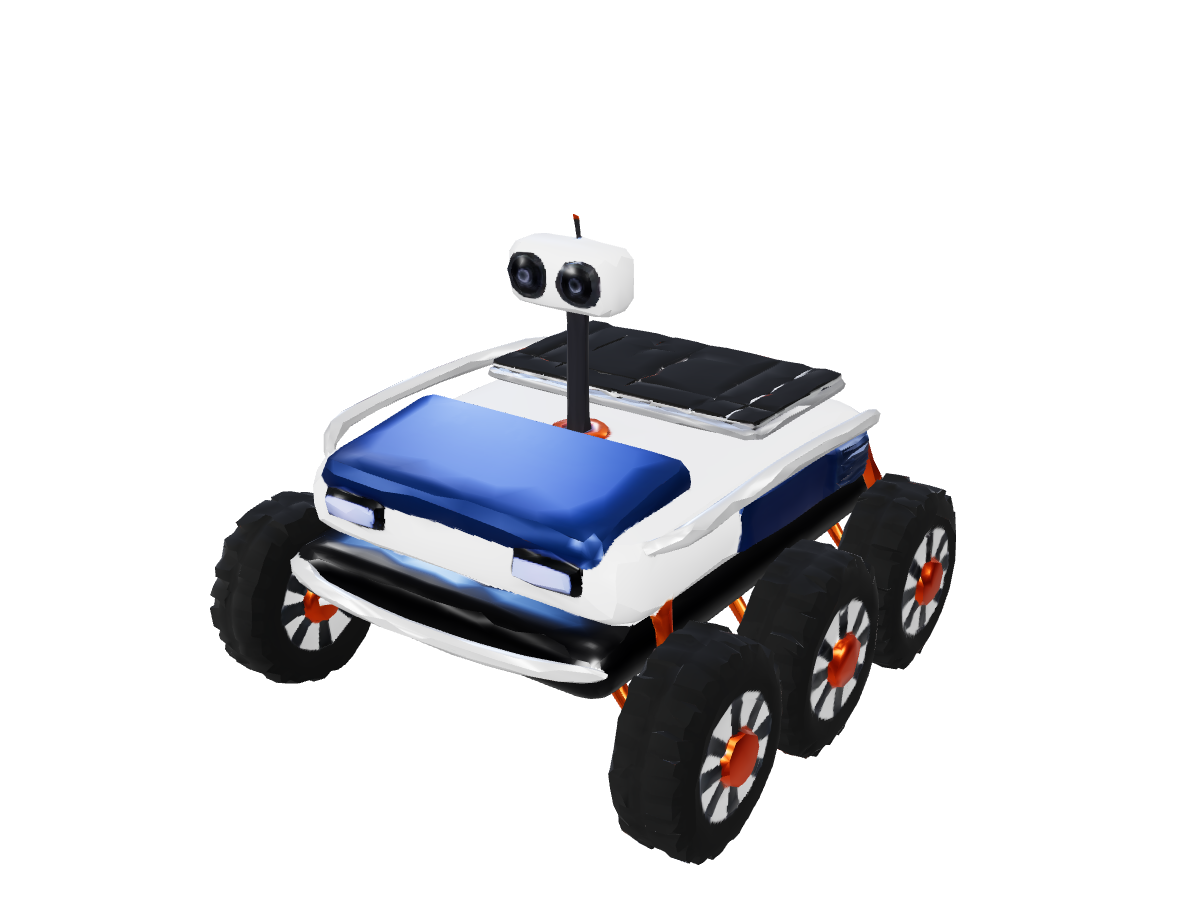
Six-wheel exploration rover

Six-wheel exploration rover: Original reference
Original reference
Six-wheel exploration rover: Reconstructed model
Reconstructed model

Frequently asked questions

How does the target face count influence my 3D mesh?

The face-count setting requests a target mesh density. Actual output can differ from that target. Higher targets allow more geometric detail, while lower targets can be useful for shape exploration. Inspect topology before production use.

How can I establish physical dimensions in my prompt?

AI models construct geometry in normalized relative coordinates. Describe proportions clearly in your prompt (e.g., "a tall slender vase" or "a wide low-profile coffee table"). After exporting the GLB, confirm and calibrate exact metric dimensions in your 3D editing software or slicer.

Can I attach a sketch or reference image?

Yes. The text generator accepts an optional single image reference to help steer colors and silhouette. If your workflow is primarily driven by an existing photograph, illustration, or render, use our dedicated Image to 3D Converter for optimal results.

Can I try text to 3D before subscribing?

Yes. Every newly registered account receives a one-time welcome credit grant upon their first successful sign-in, allowing you to test both Turbo and Quality generations with zero financial commitment.

Start with text