Skip to content

AI texture generator: retexture 3D GLB models with image references

Re-skin existing 3D models with new surface materials and finishes. NovaGen3D's AI texture generator applies visual color, roughness, and stylistic treatments from a 2D reference image onto your GLB mesh. Use the original model as your baseline when reviewing geometry, UVs, and material coverage.

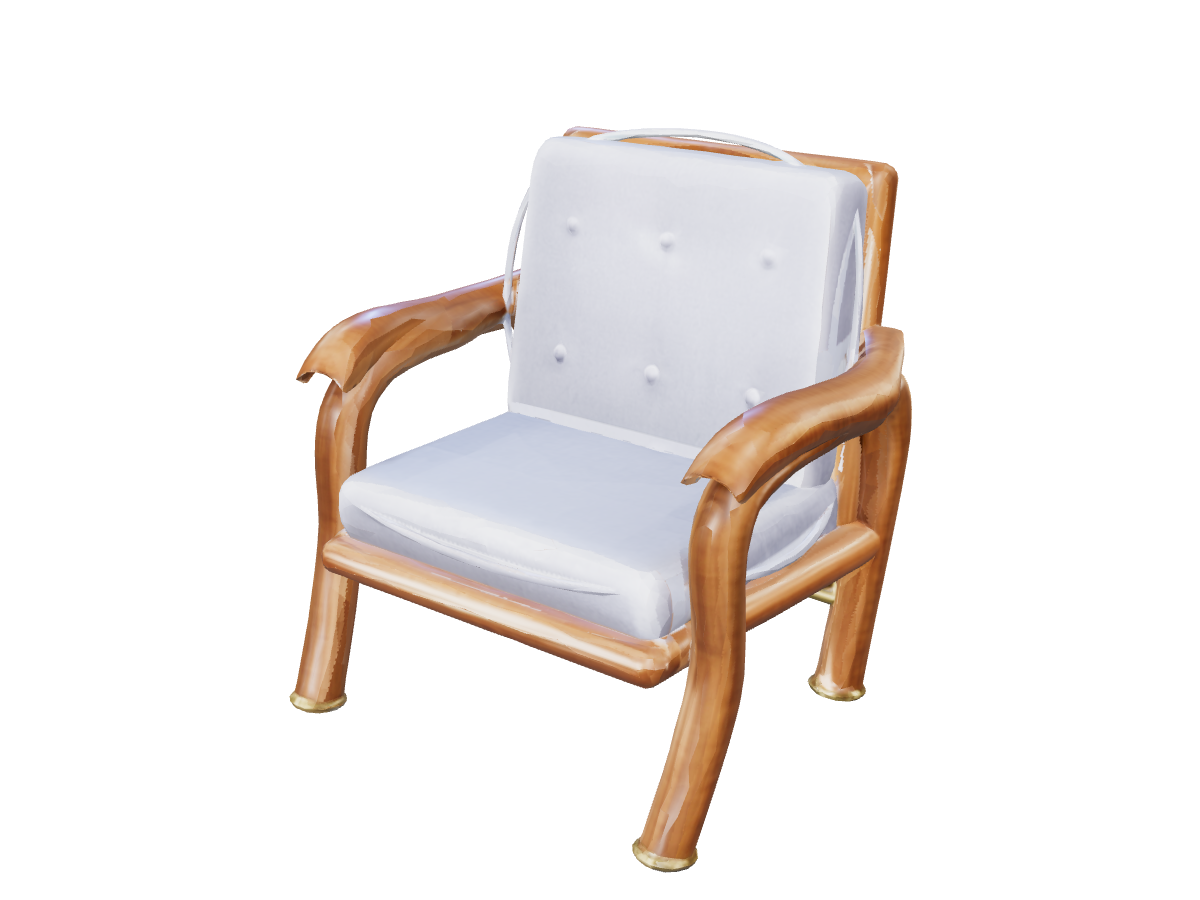
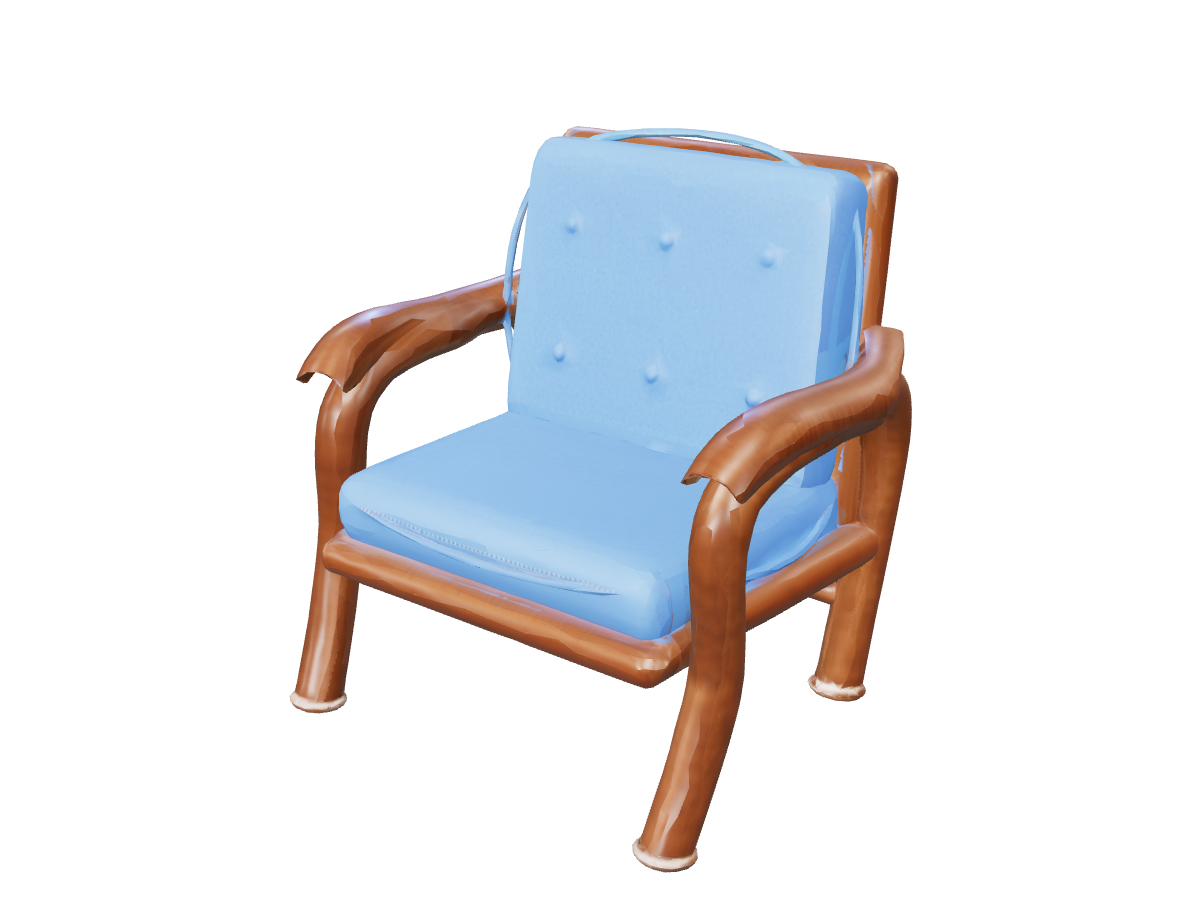
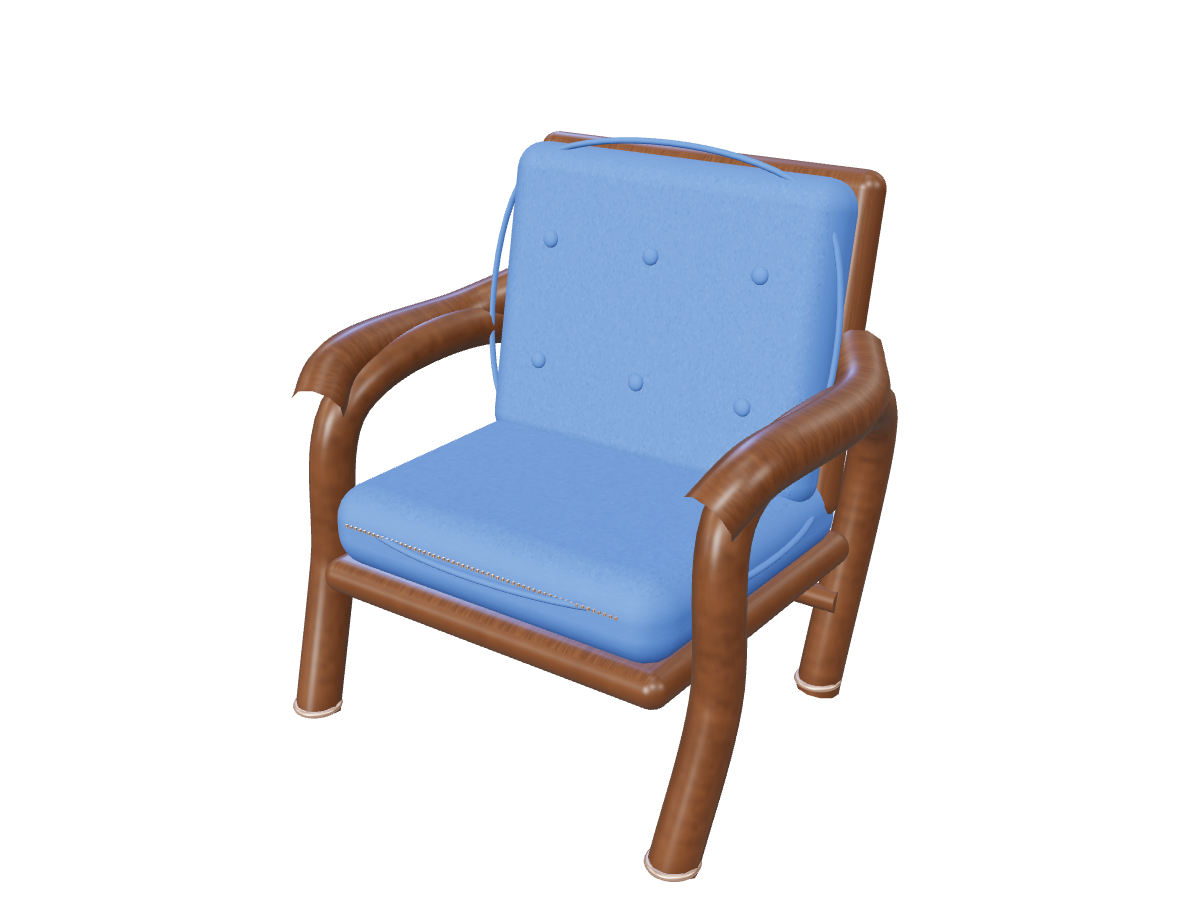
Armchair: blue material direction

AI texture generator workspace

Model examples

AI texture generator

Reference image *

GLB model *

Select the model you want to work on.

Advanced settings

ResultsNo task selected
Loading 3D preview...

Explore product colorways, age game props with weathered surfaces, or test different finishes. Sign in to start retexturing with your account credits.

Armchair: blue material direction: Material reference

How image-guided AI texturing works

Traditional manual 3D texturing requires painstaking UV unwrapping, texture baking, and multi-layer hand painting. NovaGen3D streamlines this process:

  • Model-Based Texturing: Start from your existing GLB and compare the returned mesh, UV layout, and any skeleton with the source before adopting it.

  • PBR Metallic-Roughness Harmonization: The model synthesizes realistic base color (albedo), surface sheen, and roughness characteristics guided by your reference image.

  • Cohesive 360-Degree Wrapping: Rather than simply projecting a flat decal, the algorithm wraps the material naturally around curved organic and hard-surface contours.
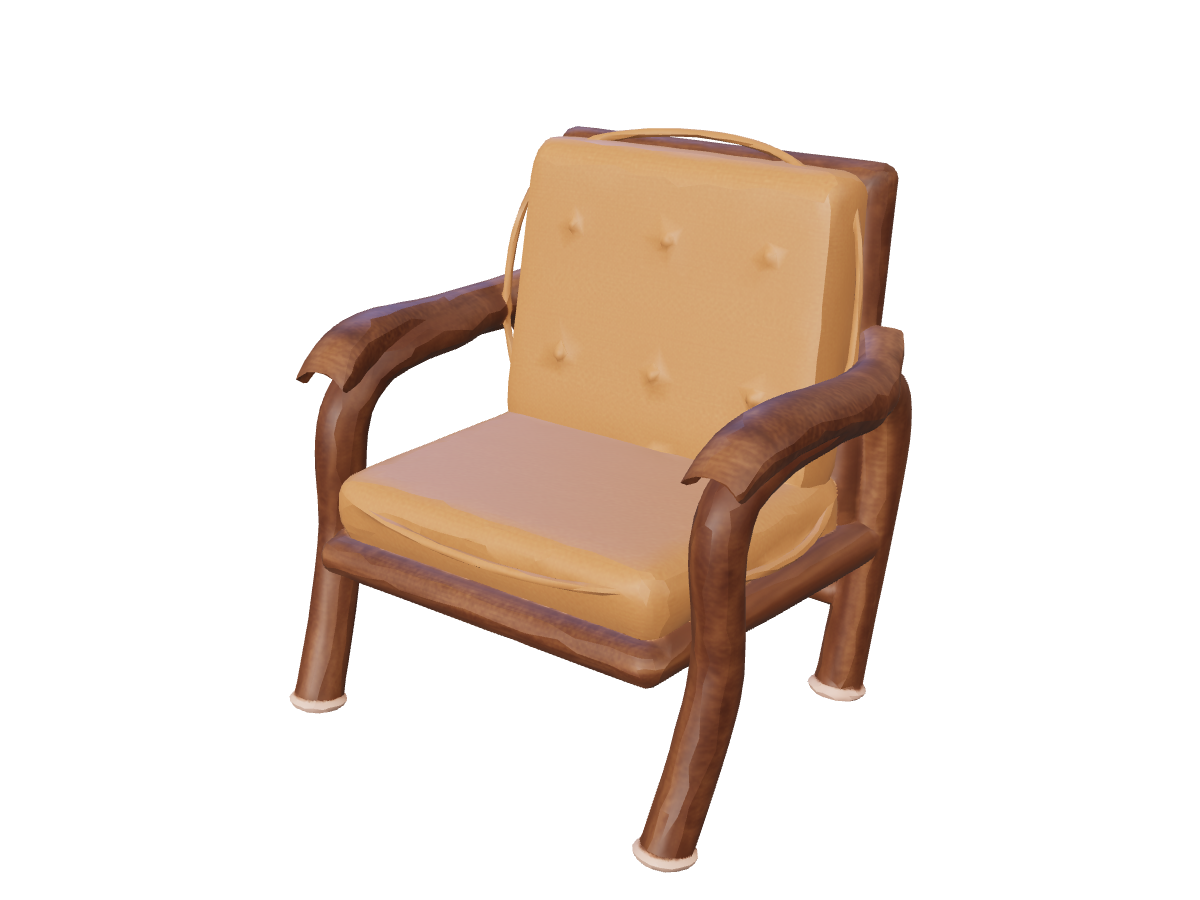
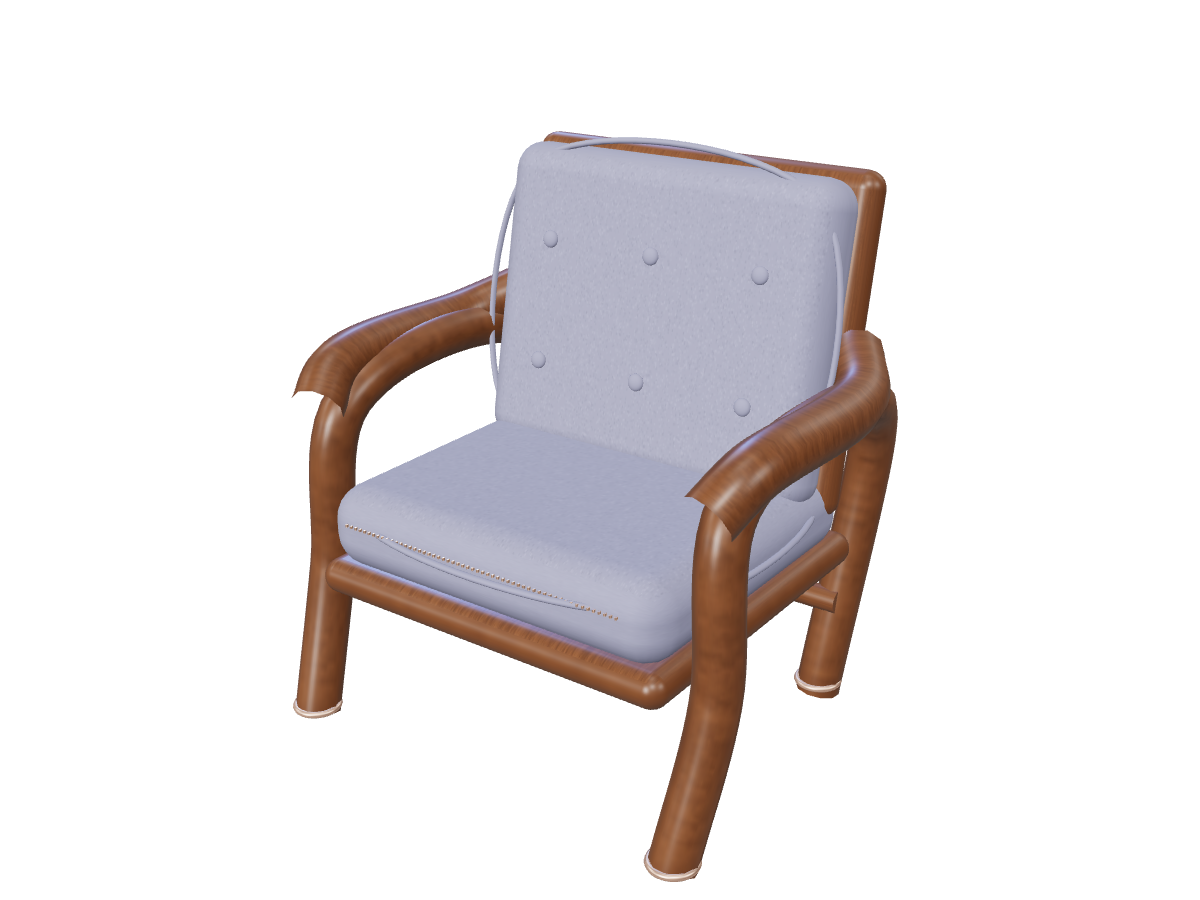
Armchair: bronze material direction: Source model

Creative texturing applications

  • Product Design & CMF Exploration: Quickly compare matte ceramic, brushed anodized aluminum, polished walnut, and forged carbon fiber finishes on the same industrial concept.

  • Game Development & Level Dressing: Create visual asset variety from a single base mesh—turn a pristine castle stone wall into moss-covered ruins, or transform standard crates into hazardous cargo props.

  • E-Commerce & Digital Showrooms: Generate multiple color variants for apparel, furniture, and footwear without re-rendering or re-modeling from scratch.

Step-by-step: From source model to retextured GLB

  1. Upload your base GLB: Provide a self-contained glTF 2.0 (.glb) file. Ensure the model geometry is clean and scaled appropriately.

  2. Select your reference image: Upload a high-resolution photo, material swatch, or concept render representing the desired color palette, pattern, or finish.

  3. Execute AI texturing: Sign in to submit the task using your account credits. The generative texture pipeline maps and bakes the new surface treatments.

  4. Inspect in 3D and export: Rotate the newly textured model in the 3D viewport. Inspect seams in our 3D Viewer, adjusting exposure and environment intensity before downloading the final GLB.

Armchair: blue material direction

Armchair: blue material direction: Source model
Source model
Armchair: blue material direction: Material reference
Material reference
Armchair: blue material direction: Retextured model
Retextured model

Armchair: bronze material direction

Armchair: bronze material direction: Source model
Source model
Armchair: bronze material direction: Material reference
Material reference
Armchair: bronze material direction: Retextured model
Retextured model

Frequently asked questions

Does the AI texture generator output separate PBR texture maps?

The generator packages the resulting base color and PBR surface properties directly into a self-contained .glb file. If you need standalone PNG/JPEG texture maps and an MTL material library for Blender, Maya, or 3ds Max, pass your downloaded GLB through our zero-credit GLB Converter to export as an OBJ ZIP. That export includes base-color textures, rather than the full PBR map set.

How should I prepare my reference image for the best finish?

Use a reference image with even, glare-free lighting and crisp surface detail. If you are aiming for a specific material (such as distressed brown leather or iridescent beetle shell), select an image where that texture is the dominant visual element.

Does retexturing alter my model's polycount or bone hierarchy?

The workflow explores a new surface appearance on an existing model. Compare face count, geometry, UV seams, and any bone hierarchy with your source GLB; preservation of every model detail is not guaranteed.

Can I test the texture generator with free welcome credits?

Yes. Every newly registered account receives a one-time welcome credit grant upon first sign-in, allowing you to try out AI texturing on your models immediately.

Retexture a model