Skip to content

Convert OBJ to STL for 3D printing in your browser

An OBJ is a mesh you can edit in a desktop 3D application. A slicer wants triangles in millimeters. This page reads one OBJ, up to 100 MB, and writes an STL on your device. Set the source units first. The local file is not uploaded for the conversion.

Inspect the mesh first
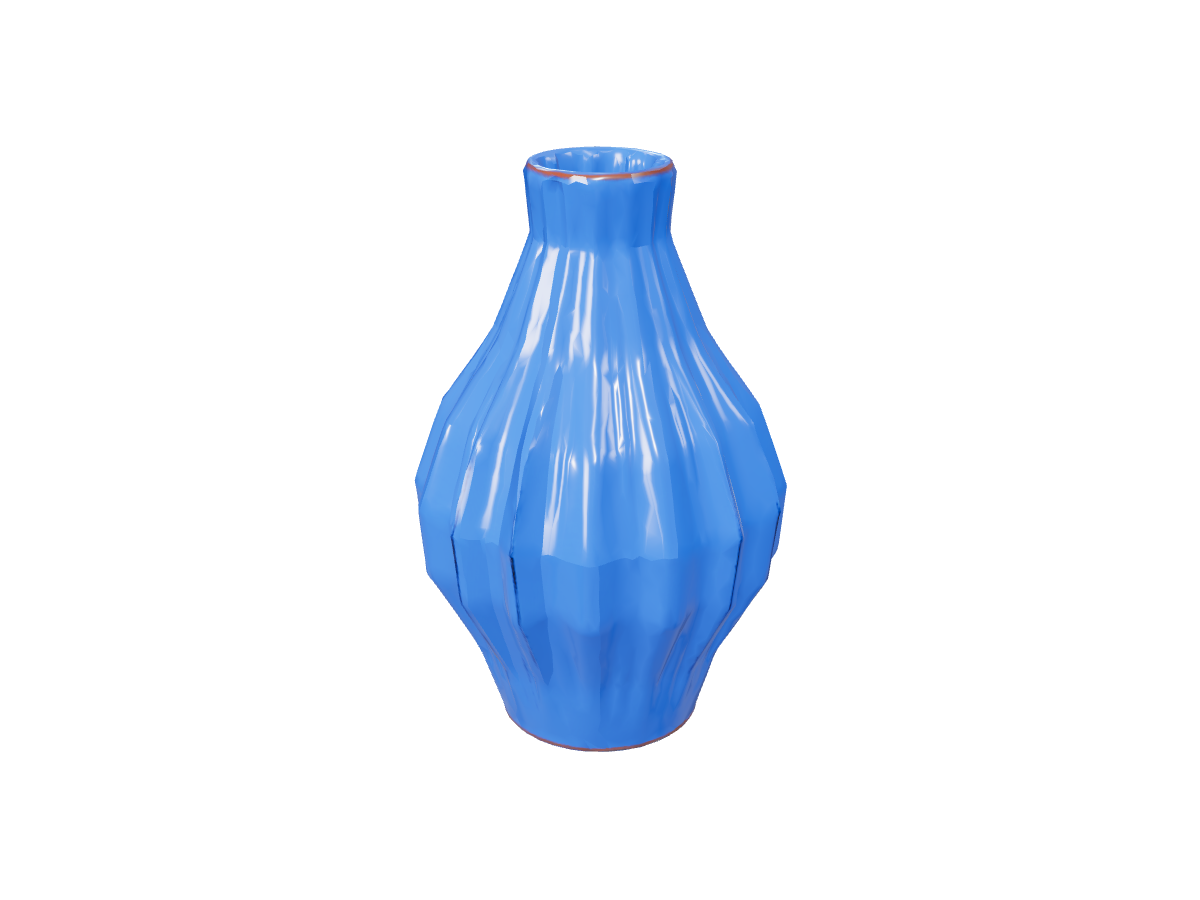
Vase: actual GLB to STL export

STL retains the surface shape shown here without GLB materials, bones or motion.

How an OBJ differs from the STL a slicer opens
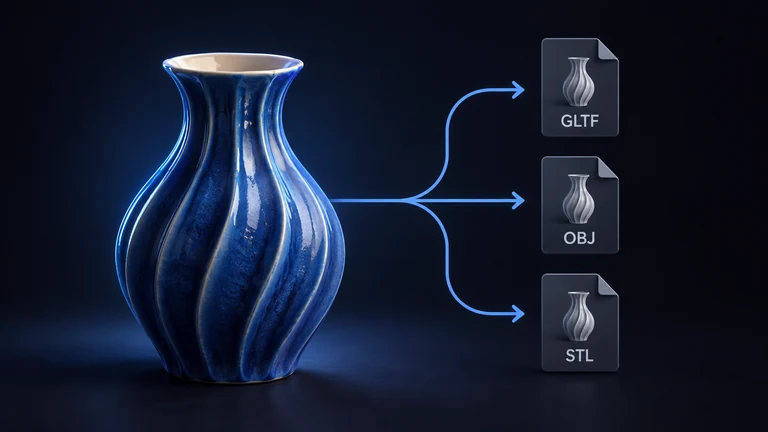
A blue ceramic vase leading to three file sheets for a geometry export.

An OBJ stores vertices, faces, and texture coordinates as text. A typical export is the mesh only. Material settings live in a separate MTL file, and textures are separate images. This converter reads one OBJ. It uses the geometry in that file and ignores an external MTL and external textures. Color from a companion material file does not enter the STL.

An STL stores facets. Each facet is three vertices, sometimes with a face normal. It has no MTL, no texture images, and no vertex colors from a side file. UltiMaker Cura, PrusaSlicer, Bambu Studio, and OrcaSlicer import it as surface geometry. Printer profile, layer height, and supports are chosen in the slicer after import.

Use this page when the OBJ is the model you already have and the next application is a slicer. Keep the OBJ, the MTL, and the textures together when you still need appearance in a desktop 3D tool.

Set the source units before you export

OBJ does not declare one standard unit. A vertex value of 50 might mean 50 mm in one application and 50 cm in another. This page asks you to choose mm, cm, or m. The default is mm. The choice is saved with that file until you replace the model.

The STL is written in millimeters from the unit you selected. If the OBJ was modeled in millimeters and you leave the default, a 50-unit edge stays 50 mm. If that same file was modeled in centimeters and you leave the default at millimeters, the print comes out ten times too small. If it was modeled in meters and you leave millimeters selected, a 0.2-unit-tall object becomes 0.2 mm. Check a known dimension in the slicer before you print.

A GLB does not use this control. glTF is in meters, and glb to stl converts those meters to millimeters for you. An OBJ needs the unit you actually used.

Three steps on your device

Open one OBJ

Choose a single .obj up to 100 MB. The page accepts OBJ only. Paste a direct HTTPS link when the browser is allowed to read it and the path ends in .obj, or pick a supported saved model from Assets after you sign in. Do not expect a companion MTL or a texture folder to be picked up beside the mesh. Those files are not inputs here.

Choose the unit, then write the STL

Set source units to mm, cm, or m before you convert. Leave STL selected. Conversion runs in the browser. A file from disk stays on the device for this step. Static export allows at most 1 million triangles and 3 million vertices. Combined output is limited to 200 MB. The STL download does not require an account.

Open the STL in the slicer and measure it

Download the STL and open it in your slicer. Measure one dimension you know from the original model. If it is off by 10 or by 1000, the source unit was wrong. Change the unit, export again, and measure once more. The preview shows the exported triangles. It does not place the mesh on a print bed.

Checks to make before you print

Wall thickness, face direction, and a closed surface are not repaired by a format change. A clean conversion can still produce a mesh that is too thin, inside out, or full of holes. Measure thickness for your nozzle and material. Flip inverted normals in a mesh editor. Close openings you need to be solid.

The STL has no printer profile inside it. Choose the machine, the material, the layer height, the infill, and the supports in UltiMaker Cura, PrusaSlicer, Bambu Studio, or OrcaSlicer. Import only means the triangles loaded.

If the OBJ was a group of objects you would rather print separately, split them in the application that exported the OBJ, or start from a GLB and use Separate parts. This page converts the mesh it is given. It does not arrange parts on a plate.

Other conversions from the same mesh

Need the GLB path instead, with materials stripped the same way? Use glb to stl. Need an OBJ package that still carries supported base-color textures out of a GLB? Use GLB to OBJ. Starting from a photo or a sentence? Image to STL and Text to STL generate a GLB first, then export triangles. Every pair is listed on the 3D converter.

Frequently asked questions

Does this page read my MTL file and textures?

No. The input is one OBJ. Geometry in that file is converted. An MTL beside it, and any texture images the MTL names, are ignored. Wavefront OBJ often ships as a folder of mesh, material, and images. This tool does not accept that folder. If the color matters, keep the original OBJ package for the desktop application, or export a GLB that embeds the textures and use a format that can store them. The STL from this page is triangles only. Slicers do not need the MTL. They need the surface, the scale, and the settings you choose after import.

Which source unit should I pick?

Pick the unit the OBJ was modeled in, not the unit you wish the print to use. The control is mm, cm, or m, and it starts on mm. Many CAD and print exports are already millimeters, so the default is right for those files. A Blender scene defaults to meters, and its OBJ exporter can apply a further scale. Other tools write millimeters. The file itself does not tell you which one was used. The STL is then written in millimeters from that choice. A wrong unit scales the entire print by 10 or by 1000. Measure a known edge in the slicer. If the number is wrong, change the unit here and export again. Replacing the file resets the unit back to mm.

Is the STL ready to print?

The format change does not thicken walls, flip faces, or close holes. Those defects in the OBJ are still in the STL. Check wall thickness for the nozzle and material you will use. Check that faces point outward. Check that the shell is closed where you need a solid. Then set orientation and supports in the slicer. UltiMaker Cura, PrusaSlicer, Bambu Studio, and OrcaSlicer can open the file. None of them receive a printer profile from the STL, because the format does not contain one. Treat the download as the triangle handoff. The print check still happens in an editor and in the slicer.

Is the OBJ uploaded, and do I need an account to download?

Conversion runs in the browser. An OBJ you select from disk is not uploaded to be converted. A direct HTTPS link works when the host allows the browser to read it and the path ends in .obj. Assets can supply a saved model after you sign in. The input limit is 100 MB. Static export allows at most 1 million triangles and 3 million vertices, and combined output is limited to 200 MB. The STL download on this page does not require an account. That exception is for this local export. Generated models and other saved files elsewhere on the site follow their own download rules.

What if the mesh is too dense or the link fails?

A file under 100 MB can still exceed 1 million triangles or 3 million vertices. Sculpted OBJs and reduced scans often do. The page does not export a partial mesh past that cap. Decimate the OBJ in a mesh tool, then convert again. A link the browser cannot read fails with an access error instead of a silent empty mesh. Point-cloud data is not a mesh. This converter needs faces. If the OBJ is only vertices with no faces, there is no surface to write into the STL.

Why does the print come out tiny or huge?

The STL unit is millimeters, scaled from the source unit you selected. Leaving the default mm on a centimeter file shrinks the print by 10. Leaving mm on a meter file shrinks a 1-unit object to 1 mm. Choosing meters for a millimeter file inflates it by 1000. The converter does not guess. OBJ has no required unit statement that every application honors. Confirm one real dimension after import. Fix the unit here and export again, or scale in the slicer once you know the factor. glb to stl is the path that starts from meters, because glTF defines that unit. Do not reuse that assumption for an OBJ.

Which slicers open the file, and what is missing from it?

UltiMaker Cura, PrusaSlicer, Bambu Studio, and OrcaSlicer import binary and ASCII STL. The mesh arrives as triangles. Machine, nozzle, material, layer height, infill, and supports are not in the file. Set them in the slicer, and check millimeters against a dimension you trust. Other STL importers can open the same geometry. A successful import is not a watertight test and not a thickness test. Run those checks before you start a print. If you still need color in a desktop tool, this STL is the wrong output. Use the original OBJ package, or GLB to OBJ when you are starting from a GLB.

Can I turn the STL back into an OBJ or start from another file?

Yes, on the 3D converter. STL to GLB is supported there, with the same source-unit control, because an STL also lacks a single standard unit. That GLB will not regain an MTL that this page ignored. It is geometry. If you still have the original OBJ, keep using that file for any workflow that needs the mesh in OBJ form. If you have a GLB and want triangles, use glb to stl. If you have a photo or a written description, generate a GLB with Image to STL or Text to STL, then export. This page is the direct OBJ-to-triangles step.

Download the STL