Skip to content

Convert GLB to OBJ for editing in your browser

A GLB keeps materials, a skeleton, and animation in one binary scene. Many desktop 3D applications still ask for OBJ. This page turns one GLB, up to 100 MB, into an OBJ ZIP on your device. The ZIP holds the mesh, an MTL file, and supported base-color textures. The local file is not uploaded for the conversion.

Inspect the GLB first
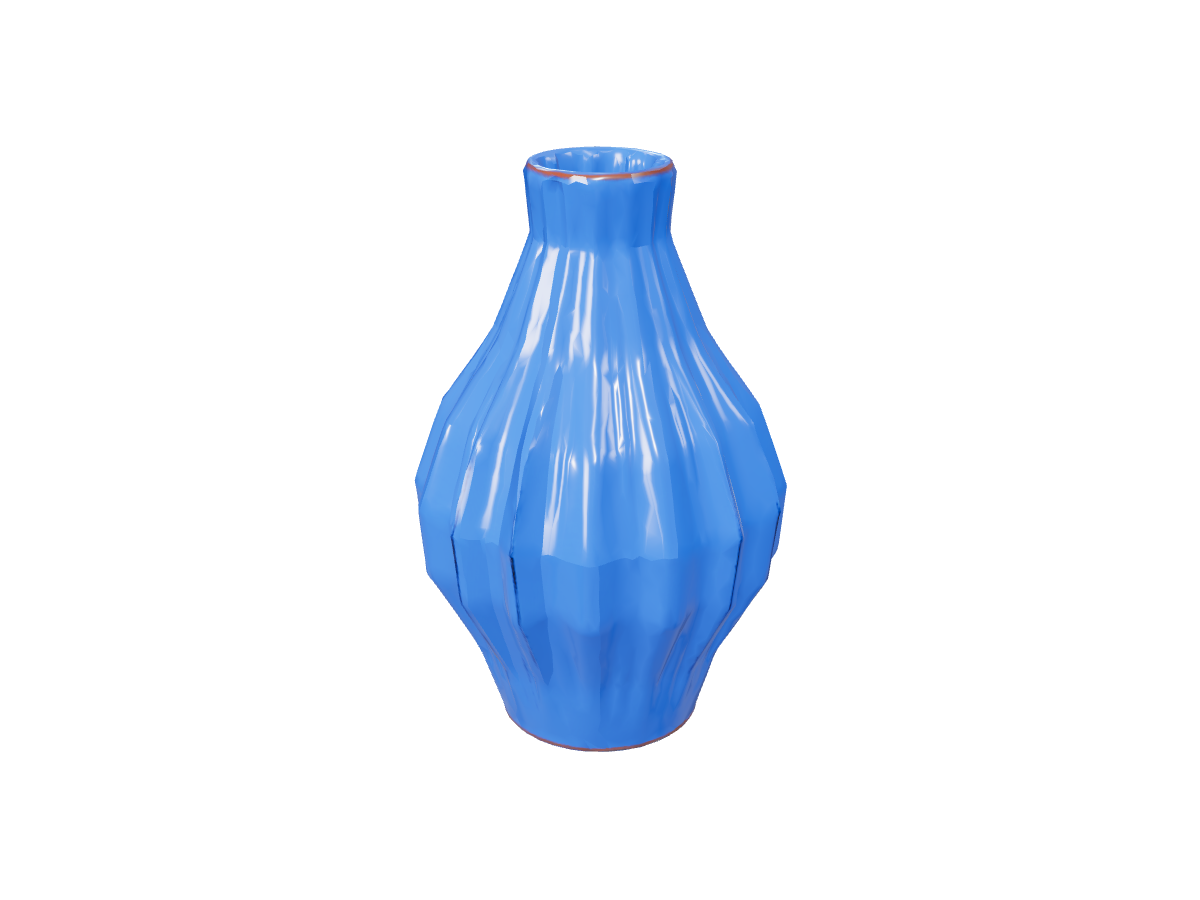
Vase: actual GLB to STL export

STL retains the surface shape shown here without GLB materials, bones or motion.

What the OBJ ZIP keeps from the GLB
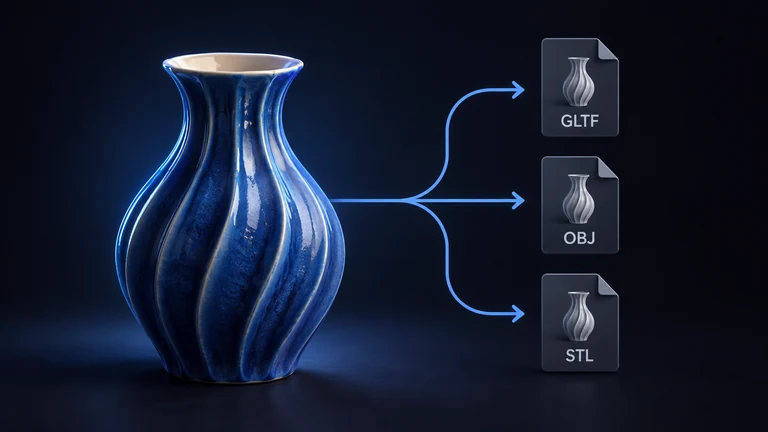
A blue ceramic vase leading to three file sheets for an editing export.

The export is a ZIP, not a lone .obj. Inside it: the mesh in the model's default pose, an MTL material file, and base-color textures the exporter can include. Keep those files together when you unzip. If the textures are moved away from the MTL, the importer shows a gray mesh even though the color was in the package.

Scene transforms are applied. The pose is the default pose stored in the GLB. A frame you paused in a viewer is not the pose that gets written. Vertex positions stay in the GLB's meters. They are not rescaled to millimeters. The STL export is the path that writes millimeters. Compare the imported size with the GLB before you treat the numbers as final.

Use this package when the next application imports OBJ and MTL and you need the shape plus the base color. Use glb to stl when the next application is a slicer and the color should be dropped on purpose.

What the package cannot carry

OBJ and MTL do not carry a skeleton or an animation clip. Bones and motion stay in the GLB. The ZIP is a static mesh. glTF material channels are not all representable in a classic MTL. Metalness, roughness, and other PBR maps may be missing even when the base color is present. The imported look can be flatter or simpler than the GLB. That gap is the format, not a failed download.

The converter does not invent textures, a rig, or animation that the GLB did not already contain. It also does not retopologize the mesh. Triangle count, holes, and face direction pass through, within the export limits.

Cameras in the GLB are not part of the OBJ. If you needed a camera, keep the GLB for the viewer or the engine that reads glTF.

Three steps on your device

Open one GLB

Choose a single .glb up to 100 MB. This page accepts GLB only. Textures that should travel into the ZIP have to be embedded in that GLB. Paste a direct HTTPS link when the browser can read it and the path ends in .glb, or choose a supported model from Assets after you sign in.

Export the OBJ ZIP

Leave OBJ selected and run the conversion in the browser. A file from disk stays on the device for this step. Static export allows at most 1 million triangles and 3 million vertices. Combined output, including textures in the ZIP, is limited to 200 MB. Base-color images are limited to 16 megapixels each. The ZIP download does not require an account.

Unzip and import without splitting the package

Unzip the download and keep the OBJ, the MTL, and the texture images in the layout the ZIP used. Import the OBJ in the destination application. Compare the base color with the original GLB. If a PBR channel you relied on is missing, that channel was not in the MTL. Go back to the GLB for a workflow that needs it.

How to check the import

Open the GLB in the 3D viewer beside the imported OBJ. Look at the base color, the silhouette, and one known dimension. A missing texture usually means the MTL and the images were separated. A missing metal or roughness response usually means that channel is not in this OBJ export.

Face direction and holes are unchanged by the format switch. Fix them in a mesh editor if the destination application shows inside-out surfaces. This page does not repair meshes.

If you actually needed triangles for a printer, switch to glb to stl or OBJ to STL. An OBJ is a poor slicer input compared with an STL, and the extra MTL is ignored by most slicers.

Other conversions from the same GLB

Print path: glb to stl, then check thickness, normals, a closed surface, and millimeters in the slicer. Apple AR: GLB to USDZ, which can keep supported materials in a static file and still drops animation. Already in OBJ and need triangles: OBJ to STL, and set mm, cm, or m before you export. No file yet: Text to STL or Image to STL generates a GLB first. The whole set is on the 3D converter.

Frequently asked questions

Does GLB to OBJ keep textures?

The download is a ZIP with the mesh, an MTL file, and supported base-color textures from the GLB. Import fails to show color when those pieces are separated, so unzip and keep the folder together. Base color is the channel this export is built to carry. Metalness, roughness, and other glTF PBR channels are not fully represented in a classic MTL. The model can look simpler in the destination application than it did in the GLB. Compare the two before you replace a textured asset. The conversion does not paint new textures onto a mesh that had none.

Do the skeleton and the animation survive?

No. The OBJ is the default pose of the mesh. Bones, skin weights, and animation clips stay in the GLB. A pose you paused on a timeline is not exported. If the next tool needs to play the clip or deform the character, keep the GLB, or use a glTF export from the 3D converter, which can retain supported skeletons and animation already in the file. Use this OBJ when the destination wants a static mesh and a material file. Use glb to stl when even the material should be dropped for a slicer.

What are the file limits, and is the GLB uploaded?

One GLB up to 100 MB. Static export allows at most 1 million triangles and 3 million vertices. Everything in the output together is limited to 200 MB, and each base-color image is limited to 16 megapixels. Conversion runs in the browser. A file you choose from disk is not uploaded to be converted. HTTPS links work only when the browser is allowed to read them and the path ends in .glb. The ZIP download does not require an account. A GLB that references textures outside the file is rejected, because this page cannot silently fetch companion images.

Why does the imported model look flatter than the GLB?

OBJ and MTL describe a simpler material than glTF. Base color can come across. Maps and factors that a PBR viewer uses for metal, roughness, or clearcoat often have no equivalent in the MTL, so they are absent. Lighting in the destination application also differs from the browser viewer, which changes the read of the same color. Check the base-color image on disk inside the ZIP. If that image is present and the viewport is gray, the importer is not finding the path written in the MTL. Move the files back to the ZIP layout and import again.

How should I open the ZIP?

Unzip it and import the OBJ, with the MTL and images still beside it in the same relative places. Do not import a single extracted .obj from a downloads folder if the MTL stayed behind. Desktop applications that import OBJ will look next to the mesh for the MTL named in the file. If that lookup fails, you get geometry without color. After import, compare one known dimension and the silhouette with the GLB in the 3D viewer. Scale is part of the check. This page does not ask for source units on a GLB, because glTF is in meters. An OBJ you created elsewhere is a different case and uses the unit control on OBJ to STL.

Can I edit the OBJ and come back to an STL?

Yes. Edit the mesh in your desktop tool, export a new OBJ, and open OBJ to STL. Set the source units to the unit that export used, because a new OBJ does not inherit glTF's meters. The STL from that page is triangles for a slicer, and it will not contain the MTL you just edited. If the edit was only a material change you still need in a real-time engine, export or keep a GLB instead. This page's ZIP is the editing handoff. It is not the print file.

What if I needed USDZ or STL instead?

Choose the format for the data the next application can read. glb to stl writes millimeters for UltiMaker Cura, PrusaSlicer, Bambu Studio, or OrcaSlicer, and it drops materials on purpose. GLB to USDZ writes a static file for Apple AR and can keep supported materials. Both drop animation. This OBJ ZIP is the one that adds an MTL and base-color images for desktop import. The 3D converter can also write GLTF, PLY, 3MF, a voxel VOX, or a GIF turntable from the same kinds of inputs. Pick one job per export and check the result in the destination application.

Does the conversion repair holes or reduce the triangle count?

No. Holes, inverted faces, and overlapping shells are still there after the ZIP is written. Triangle count is preserved up to the limit of 1 million triangles and 3 million vertices. A denser GLB has to be simplified before this page will export it. Remesh can reduce a GLB when you need a lighter mesh for editing. Run that first, then come back for the OBJ ZIP. Repair tools in a desktop mesh editor remain the place to close holes and flip normals. Format conversion is not that repair.

Download the OBJ ZIP