Skip to content

3D animation retargeting: apply 85+ motion presets to rigged characters

Add library motion to your 3D characters with animation retargeting. NovaGen3D's Preset Animations maps skeletal motion clips onto a compatible rigged GLB character, automatically calculating joint orientations and bone retargeting without manual keyframing.

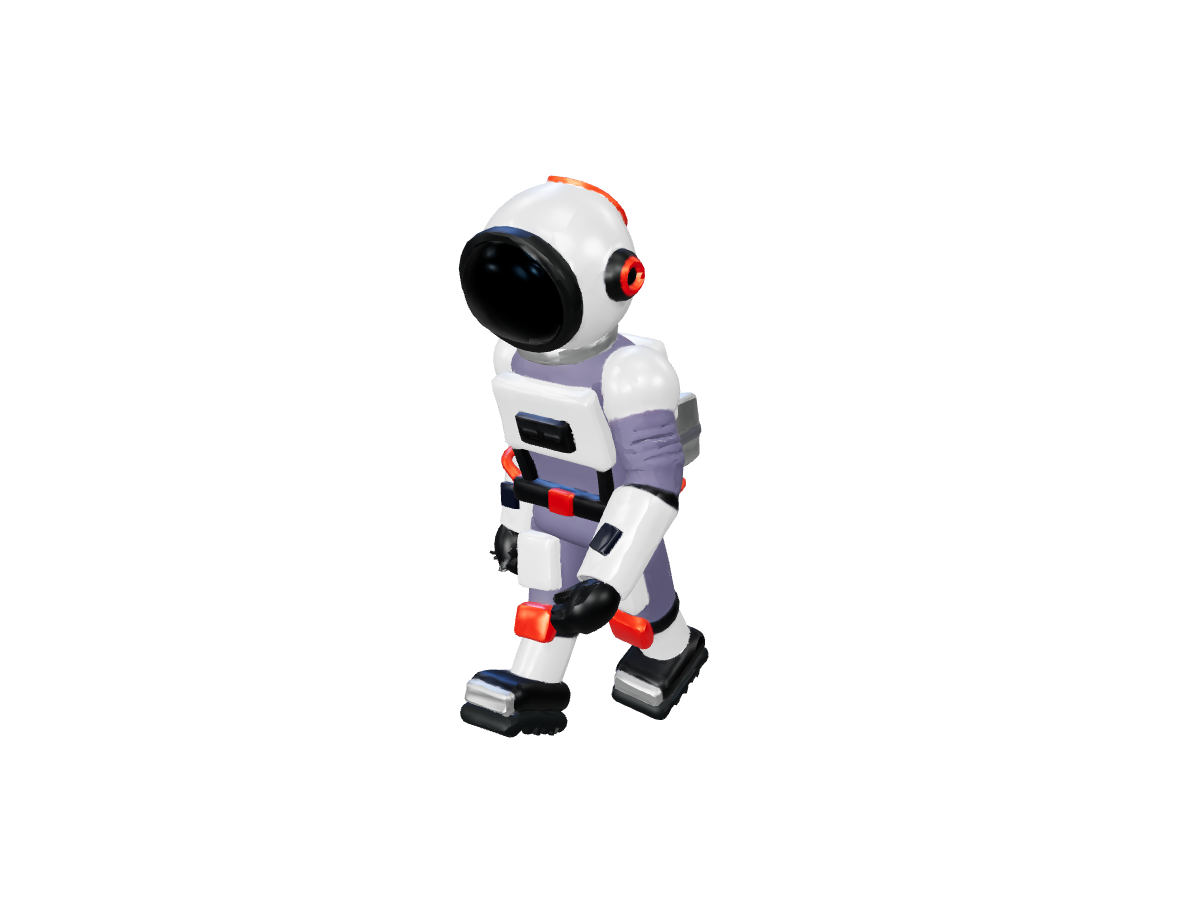
Explorer: Idle
Explorer: Idle

Preset Animations workspace

Model examples

Preset Animations

Character GLB with a skeleton *

Use a character that already has bones and skin weights.

Animations
Animations0 / 10 selected

No motions match this search.

0 motions

Advanced settings

ResultsNo task selected
Loading 3D preview...

Select up to ten animations in a single batch and download inspectable animated GLB files for game engines, WebGL, and cinematics. An active Basic, Studio, or Pro subscription plan is required.

Exploring the 85+ motion library

Our extensive animation library covers fundamental movement, expressive gestures, and dynamic combat sequences for bipedal characters:

Animation CategoryFeatured Motion ClipsBest Used For
LocomotionWalk, run, sprint, crouch walk, jumpPlayer movement controllers and NPC pathing
Idles & StancesIdle, crouch idle, sitting idle, zombie idleBackground life and character idle states
Combat & ActionsSword attacks, roll, block, pistol aim, hit reactionsAction game prototypes and battle encounters
Emotes & GesturesDance, talking, phone call, yes, noSocial interactions and narrative cutscenes

Pro-tip: You can select up to 10 animation presets in a single task to generate a full character motion set in one go.

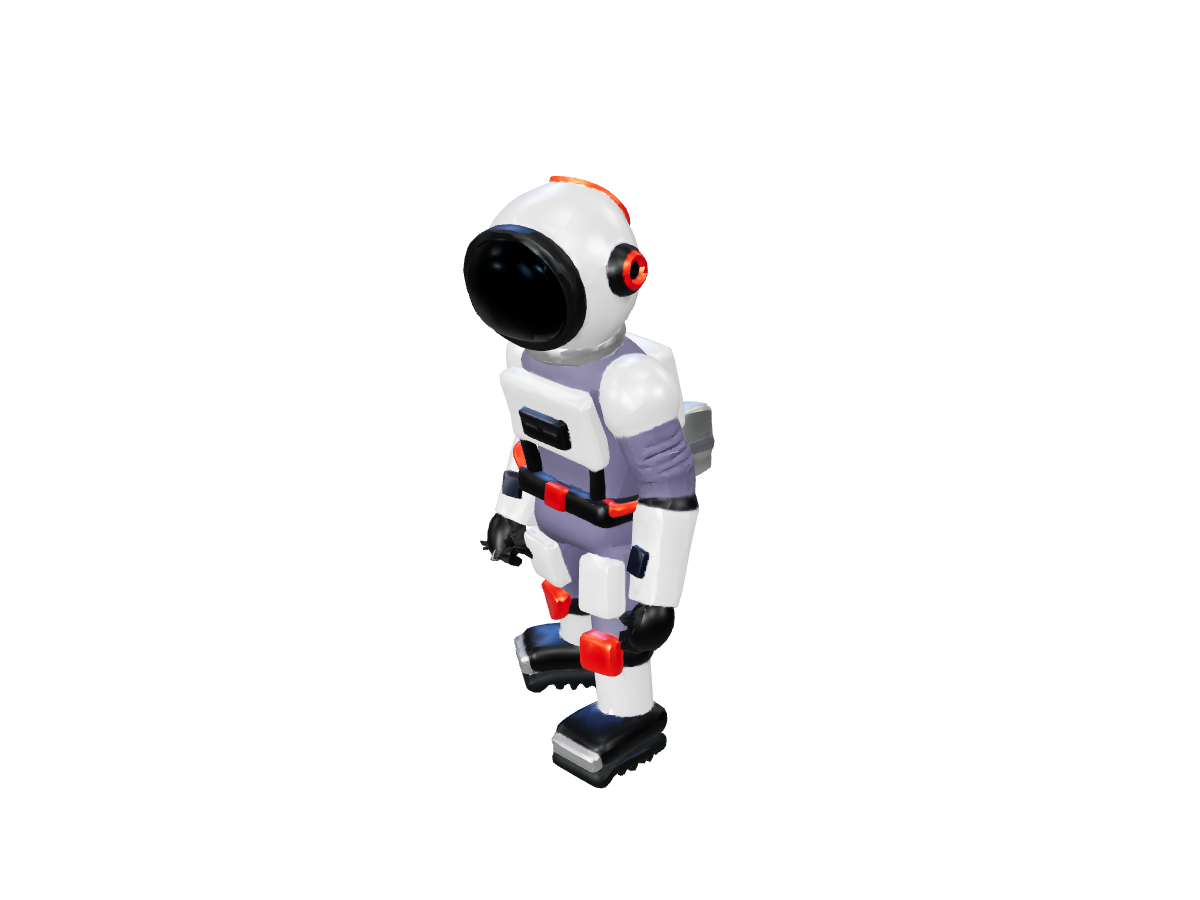
Explorer: Idle: Starting pose

Character prerequisites for animation retargeting

  • Existing skeleton: Your character must already possess a bipedal bone hierarchy. If your character is a static mesh without bones, pass it through Auto Rigging first.

  • Humanoid joint correspondence: The character should follow standard biped anatomy (head, neck, spine, arms, legs).

  • Embedded rest pose: A clean T-pose or A-pose rest state ensures accurate rotational offsets during the retargeting calculation.
Step-by-step: Retargeting animations to your character

  1. Upload your rigged GLB: Provide a character model with an embedded skeleton and skinning weights.

  2. Browse library clips: Search and select from the available motion names. Playback is available on returned animation files after processing.

  3. Select up to 10 presets: Check the motions you need for your project (e.g., Idle + Walk + Run + Jump).

  4. Execute retargeting pass: Sign in with an active Basic, Studio, or Pro plan and launch the task.

  5. Inspect and download GLBs: Watch each retargeted clip directly on your character in our 3D viewport. Download the resulting animated GLBs for use in your engine.

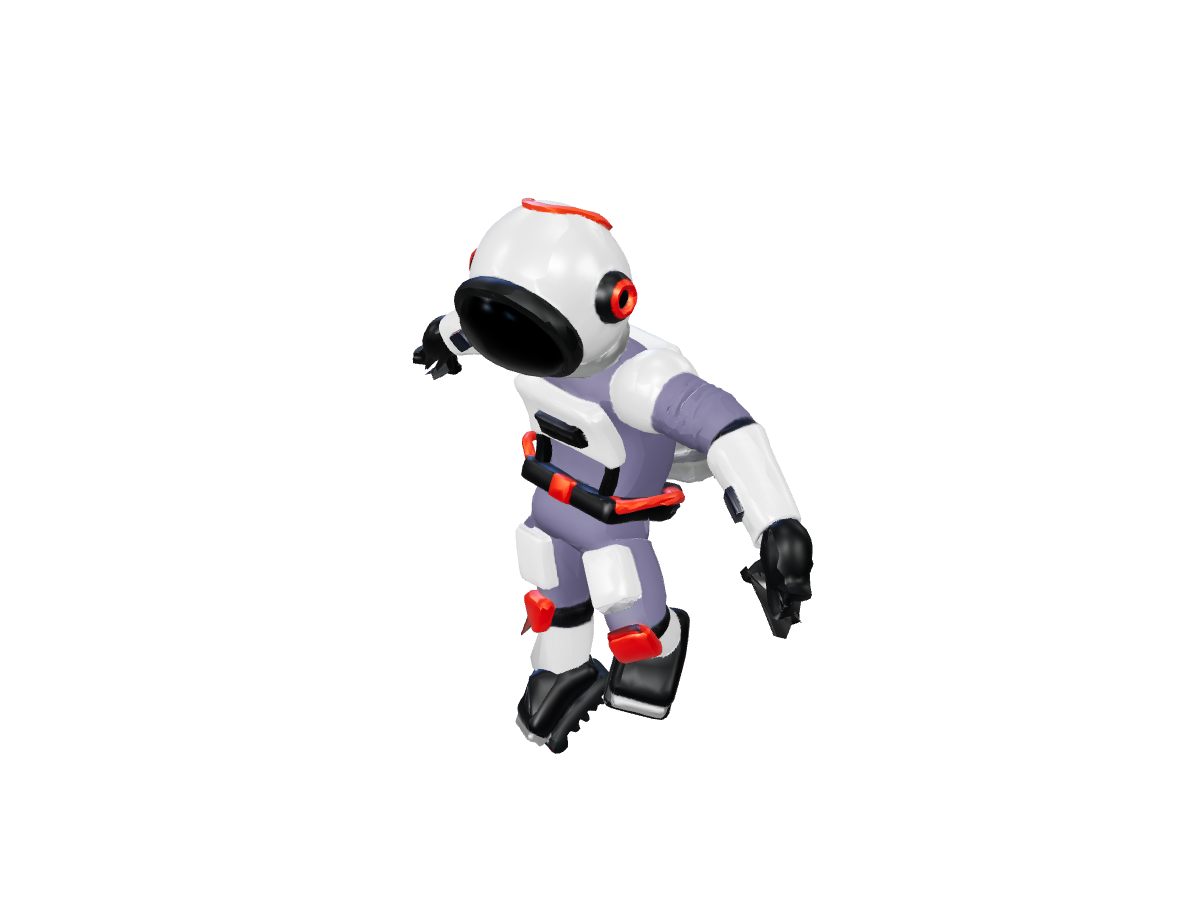
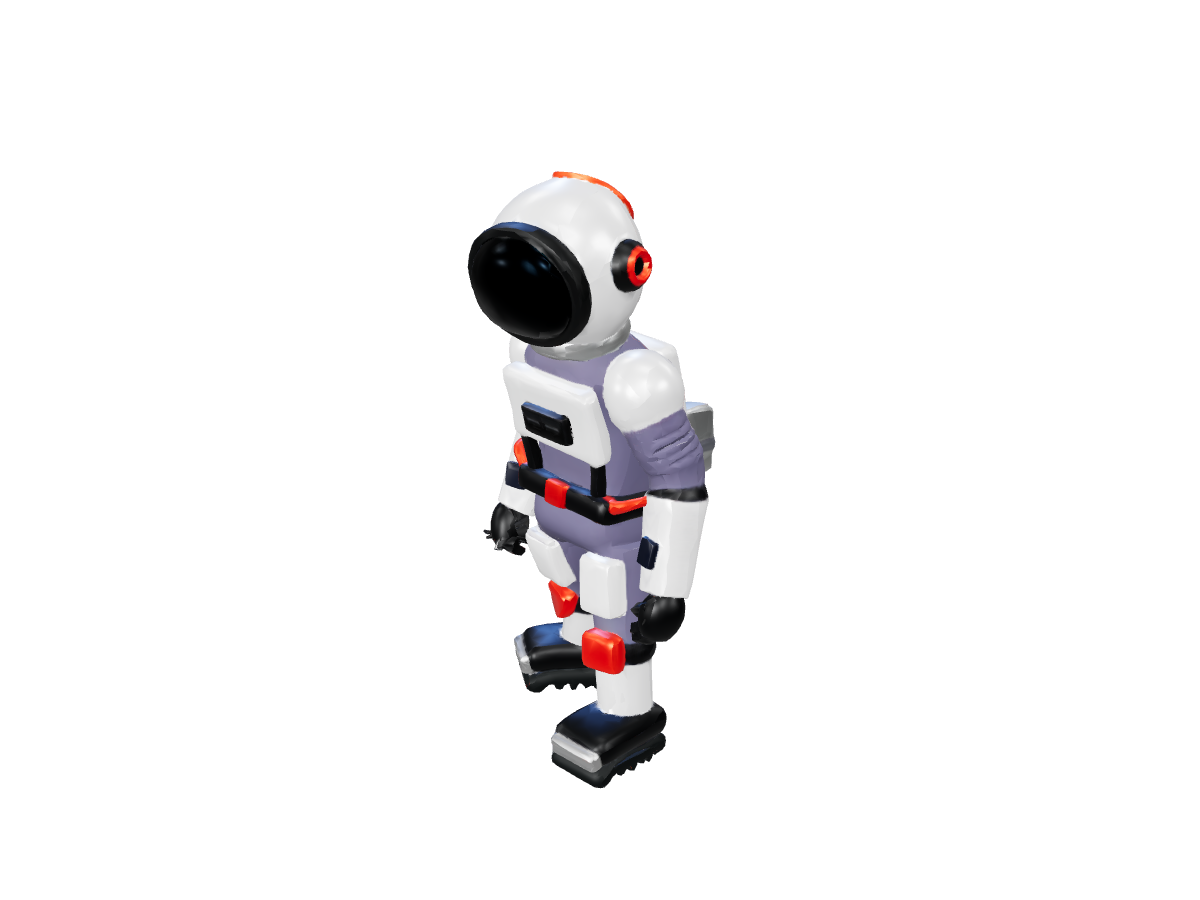
Explorer: Idle

Explorer: Idle: Starting pose
Starting pose
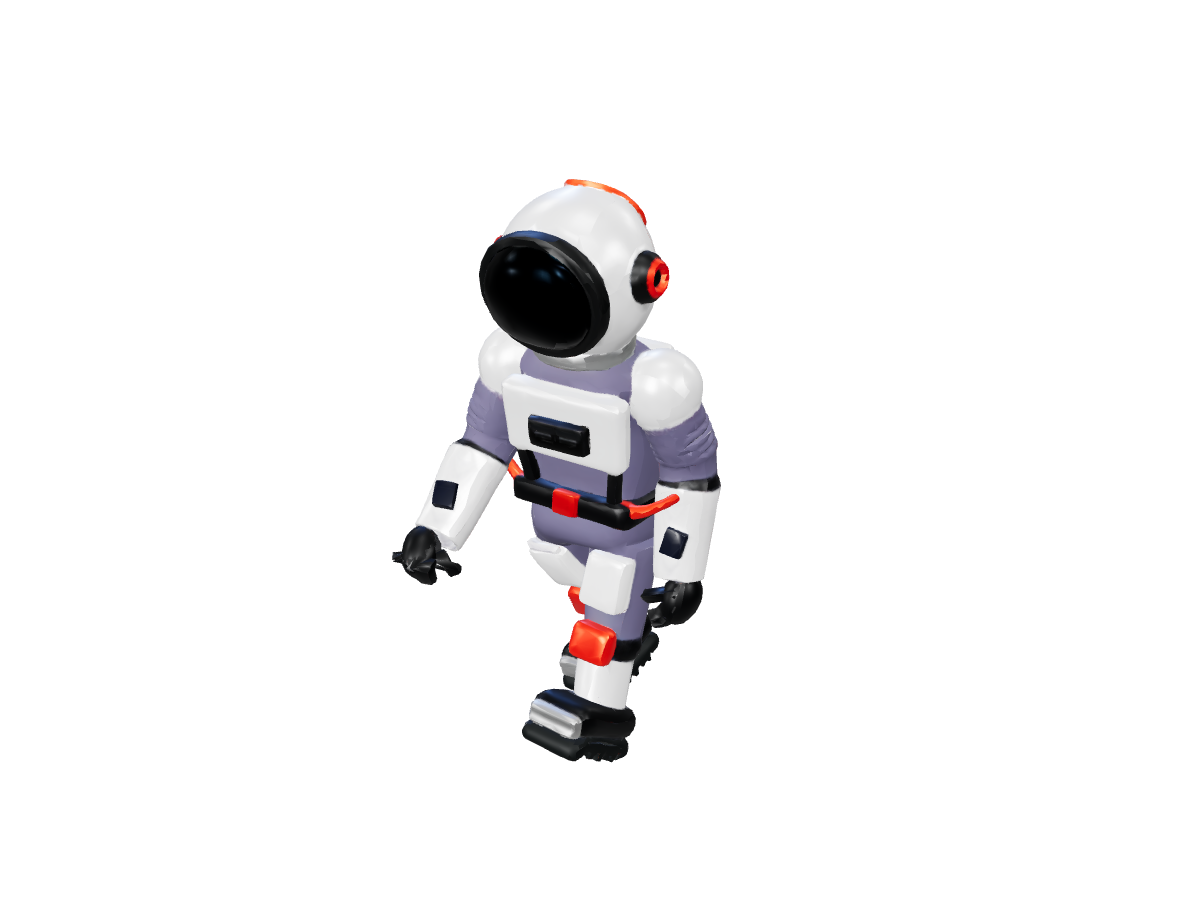
Explorer: Idle: Motion pose
Motion pose

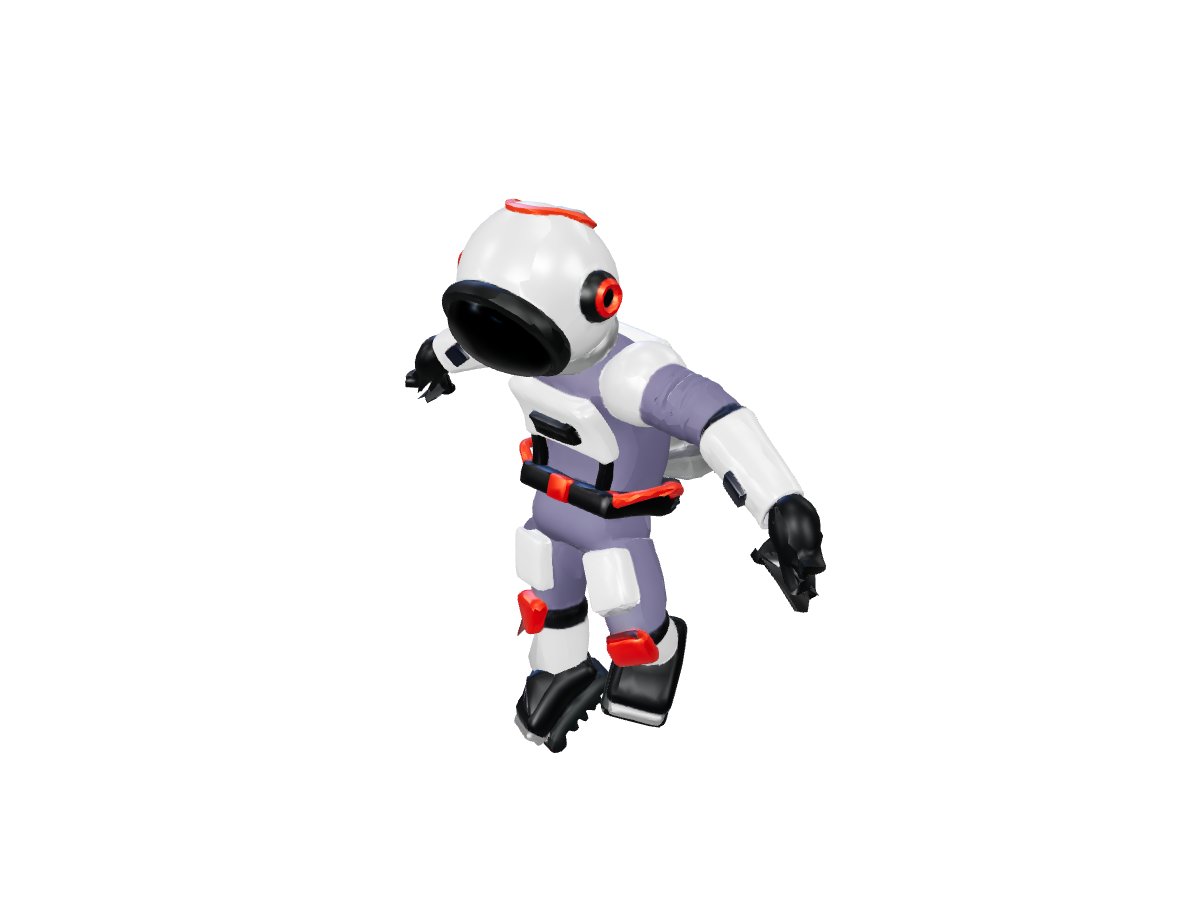
Explorer: Walk

Explorer: Walk: Starting pose
Starting pose
Explorer: Walk: Motion pose
Motion pose

Explorer: Jump

Explorer: Jump: Starting pose
Starting pose
Explorer: Jump: Motion pose
Motion pose

Frequently asked questions

Can I bring my own custom BVH or FBX motion capture files?

This tool applies the available library presets. For custom motion capture, use an animation editor with compatible model and mocap importers, then inspect joint mapping and skin weights in that workflow.

How do weapons and accessories work with combat animations?

The animation clips retarget bone rotations for your character. If a motion involves holding a prop (such as aiming a pistol or swinging a sword), attach your weapon model to the character's hand bone in your game engine or 3D editor.

Are the animations configured for in-place or root motion?

Use the in-place setting when requesting supported clips. Inspect the returned root transform before blending motion or driving a character controller in your game engine; behavior can vary between clips and rigs.

Which plans include Preset Animations?

Preset Animations requires an active Basic, Studio, or Pro plan. Check our Pricing page to choose the right subscription tier for your project scale.

Choose preset motions