Skip to content

AI auto rigging: add skeletons and skinning to 3D character GLBs

Add a starting skeleton and skin weights to static character models. NovaGen3D's AI auto rigging automatically predicts anatomical bipedal bone hierarchies, inserts joint pivots, and computes smooth vertex skinning weights across your character GLB.

Explorer: articulated character

Auto Rigging workspace

Model examples

Auto Rigging

Character GLB *

Use a humanoid character with distinct arms and legs.

ResultsNo task selected
Loading 3D preview...

Skip the tedious hours of manual joint alignment and weight painting. Rig humanoids and stylized avatars, then check bone placement and deformation. Auto Rigging is available to active Basic, Studio, and Pro subscribers.

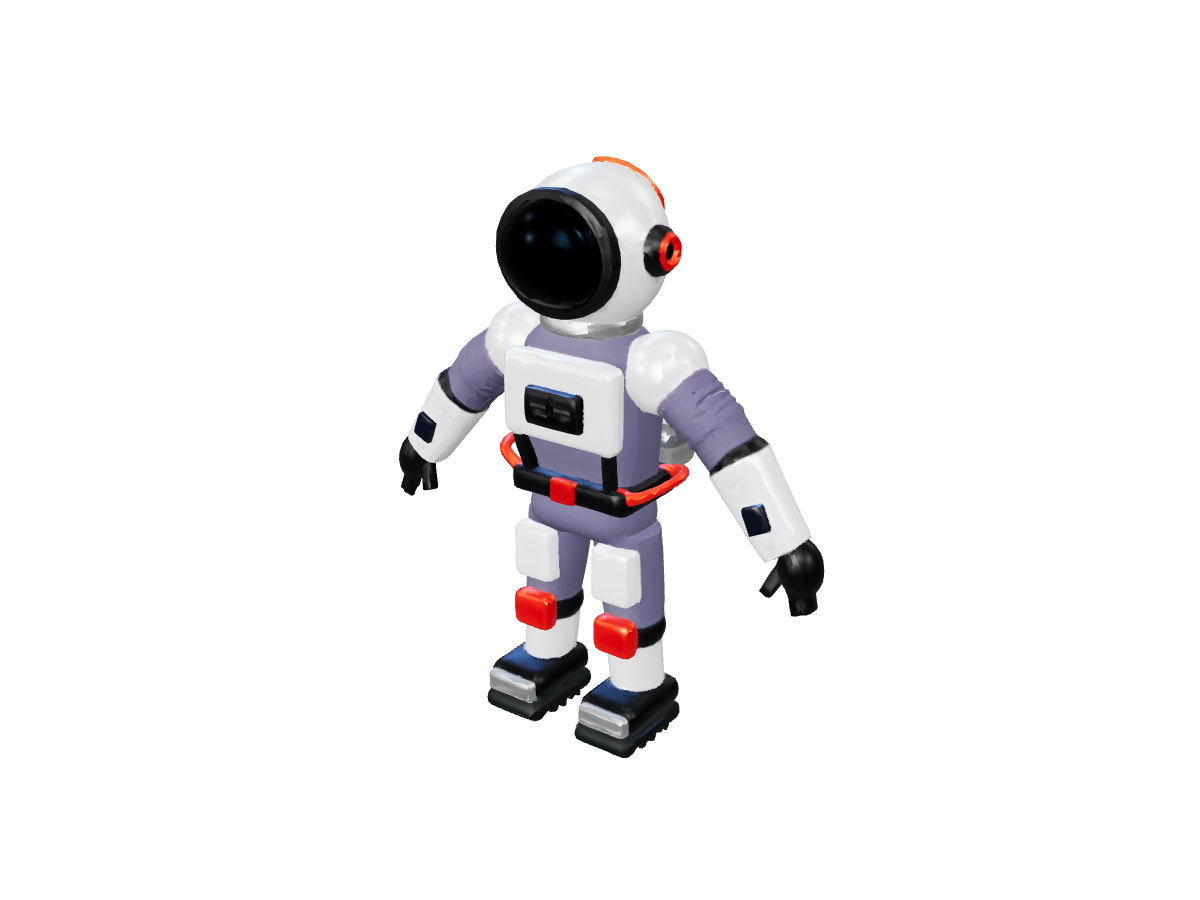
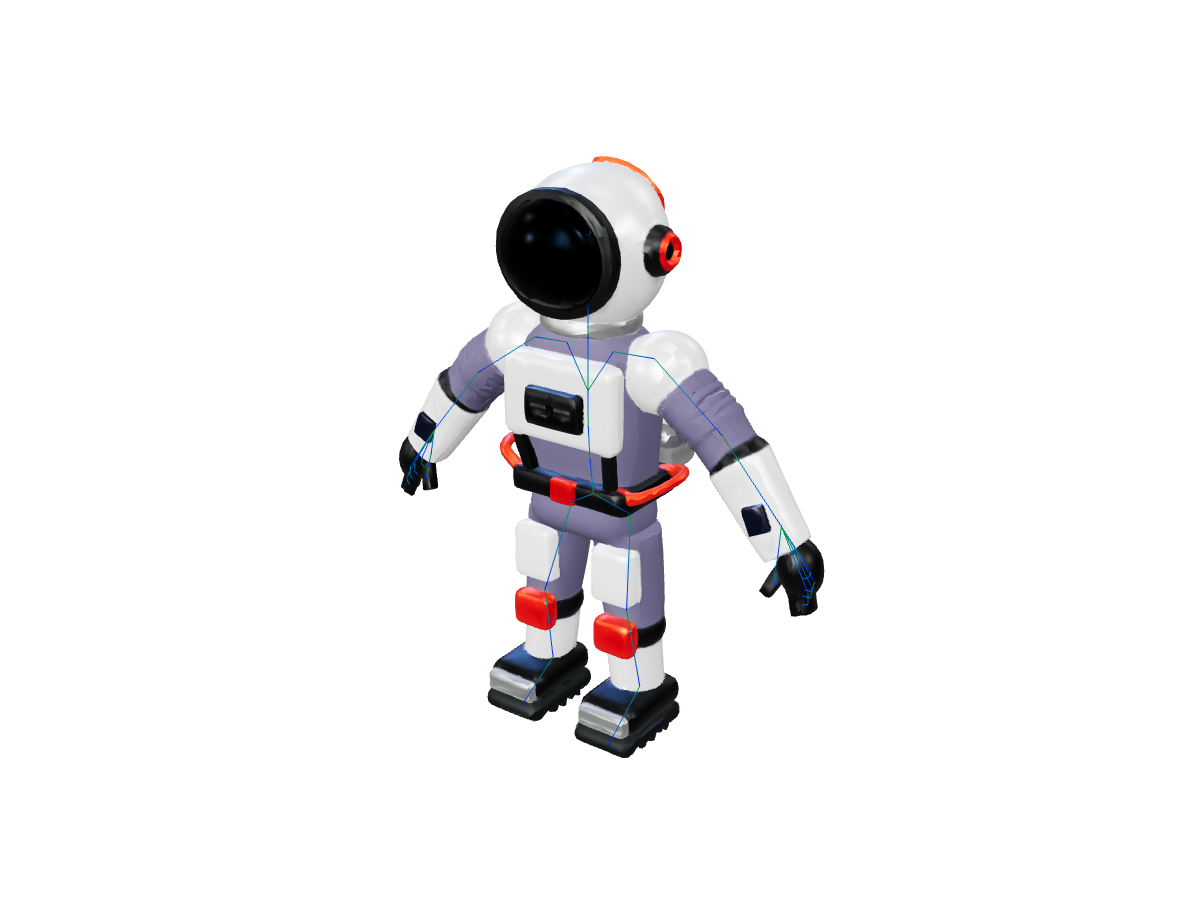
Explorer: articulated character: Character skeleton

Optimal character preparation for AI auto rigging

The AI rigging engine analyzes the outer silhouette and surface topology of your character to predict anatomical joint locations. Follow these guidelines for clearer inputs:

  • Neutral Stance (T-Pose or A-Pose): Provide your character in a standard T-pose (arms horizontal) or A-pose (arms angled 45 degrees downward). Avoid action poses with folded arms, crossed legs, or touching hands.

  • Clear Limb Separation: Ensure ample space between arms and torso, as well as between the left and right thighs. This prevents vertex bleeding and weight pinching across adjacent limbs.

  • Forward-Facing Orientation: Orient your model facing the positive Z or negative Z axis, with feet aligned flat along the ground plane.

  • Bipedal Anatomy: The model is optimized for two-legged humanoid, robotic, and stylized humanoid characters with head, torso, two arms, and two legs.
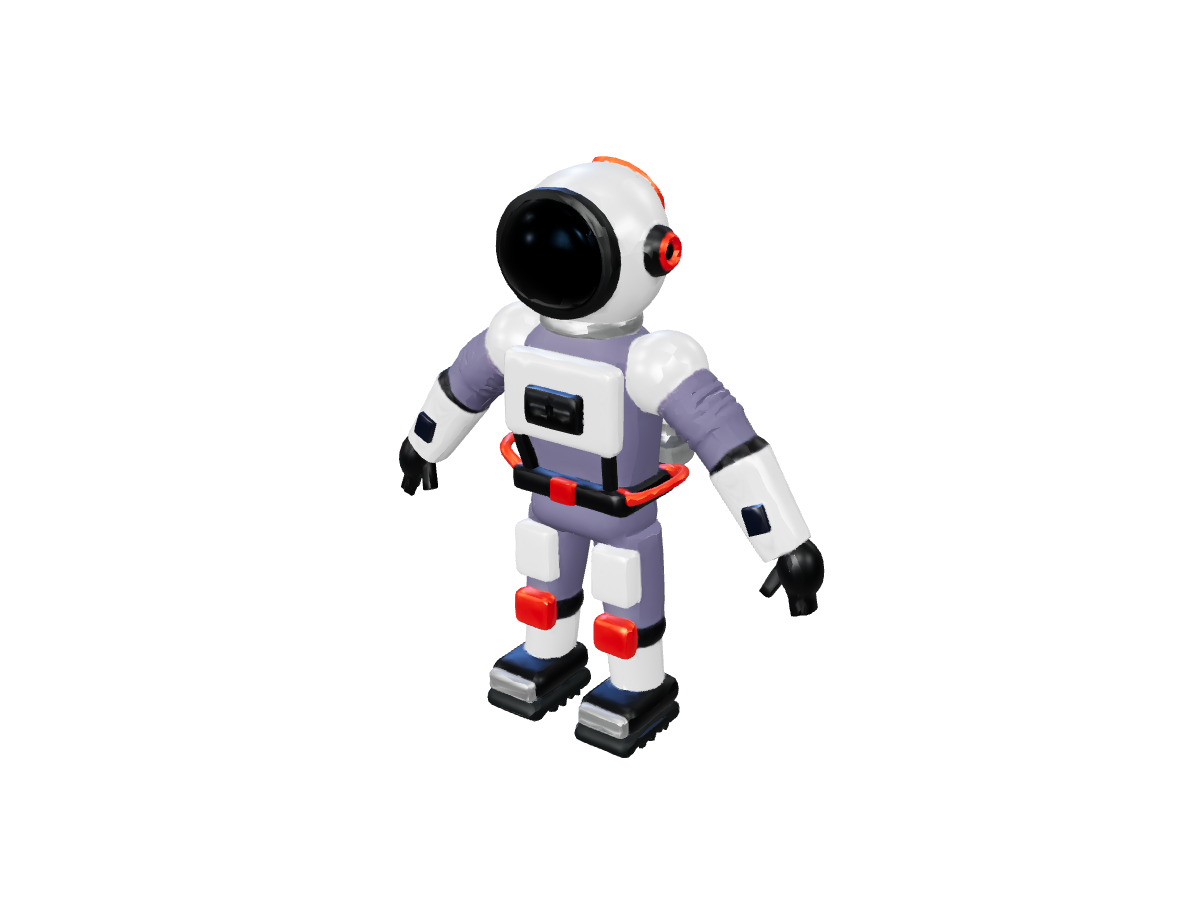
Explorer: articulated character: Character model

What the generated rig includes

  • Standardized Biped Hierarchy: A standard humanoid bone hierarchy rooted at the pelvis/hips, with articulated spine, chest, neck, head, clavicles, upper/lower limbs, and feet.

  • Deformable Vertex Weights: Smooth skinning weights assigned across all mesh vertices. Inspect elbows, knees, and shoulders under movement, and refine weights in a 3D editor when needed.

  • glTF 2.0 Skinning Spec: Fully compliant with the Khronos glTF skinning standard (joints and weights vertex attributes).

Step-by-step: From static mesh to rigged character

  1. Upload your character GLB: Provide a self-contained glTF 2.0 (.glb) file up to 100 MB or paste an accessible HTTPS URL.

  2. Submit for auto-rigging: Sign in with an active Basic, Studio, or Pro plan and launch the rigging pass using your subscription credits.

  3. Inspect the skeleton: Open the returned model in a compatible editor to check bone placement and skin weights. Rigging alone does not create motion clips; apply a preset animation to evaluate deformation during playback.

  4. Animate or export: Immediately apply clips using our Preset Animations library, or import the rigged GLB into Blender for custom keyframing. Check glTF import and rig support in your destination editor or game engine.

Explorer: articulated character

Explorer: articulated character: Character model
Character model
Explorer: articulated character: Character skeleton
Character skeleton

Frequently asked questions

Can I apply animations to my rigged character right away?

Yes. Once your character has a skeleton, you can immediately pass the rigged GLB into our Preset Animations tool to select from over 85 curated motions (including walks, runs, idles, and combat moves).

How do I fine-tune weights or add secondary bones?

Because the output is a standard glTF 2.0 file, you can import the rigged GLB into Blender (via File > Import > glTF 2.0). Other editors may need an importer or format conversion. You can inspect the bone hierarchy in the outliner, refine vertex groups in Weight Paint mode, or attach facial and hair bones.

Does Auto Rigging support non-humanoid creatures (quadrupeds)?

The current auto-rigging pipeline is specialized for bipedal humanoid forms (such as heroes, stylized game characters, cyborgs, and humanoid monsters). Four-legged characters require another rigging workflow. For rigid moving components such as doors or wheels, use Animate Parts.

What subscription plan unlocks Auto Rigging?

Auto Rigging requires an active Basic, Studio, or Pro plan. New user welcome credits do not cover rigging and animation workflows. Visit our Pricing page to choose the plan that suits your creative studio needs.

Rig a character