
Opening the image generator & editor…
Start with a few words or an image. Find your direction, refine the details, and take your next idea into 3D.
A portrait with a particular light. A product that only exists in your notes. A place you wish you could visit. Start by describing it.
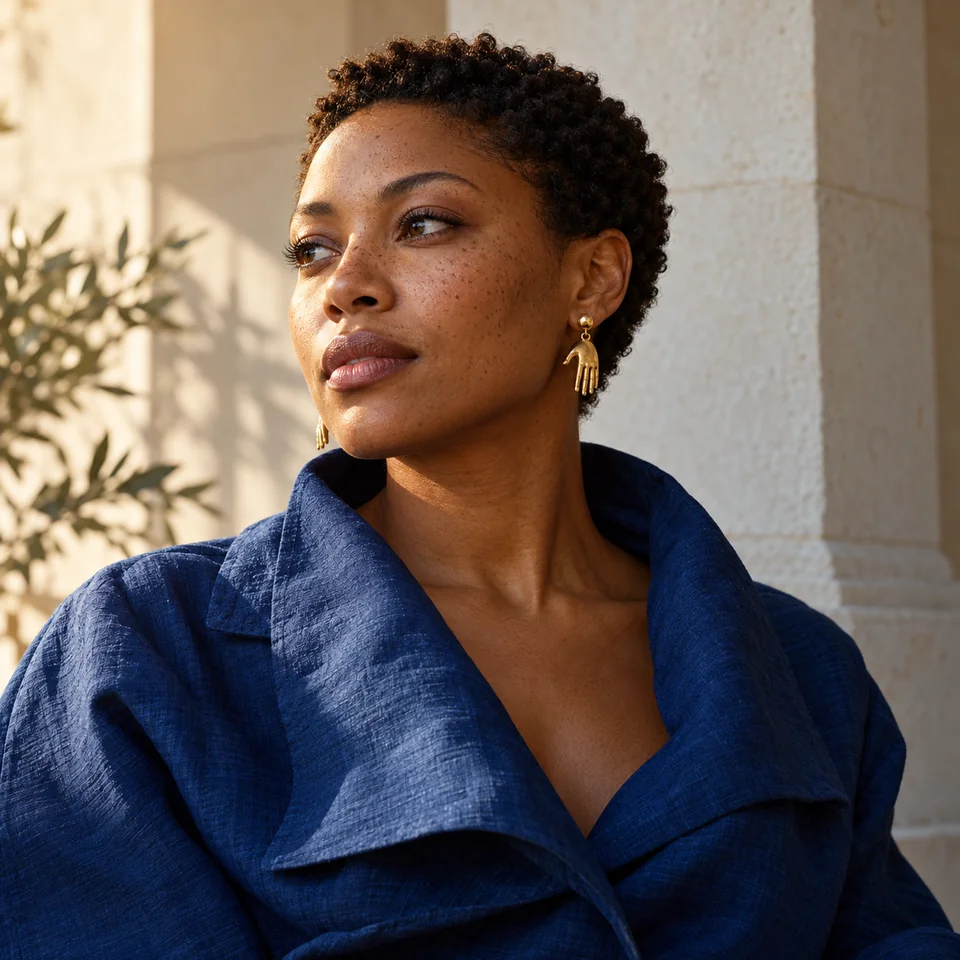
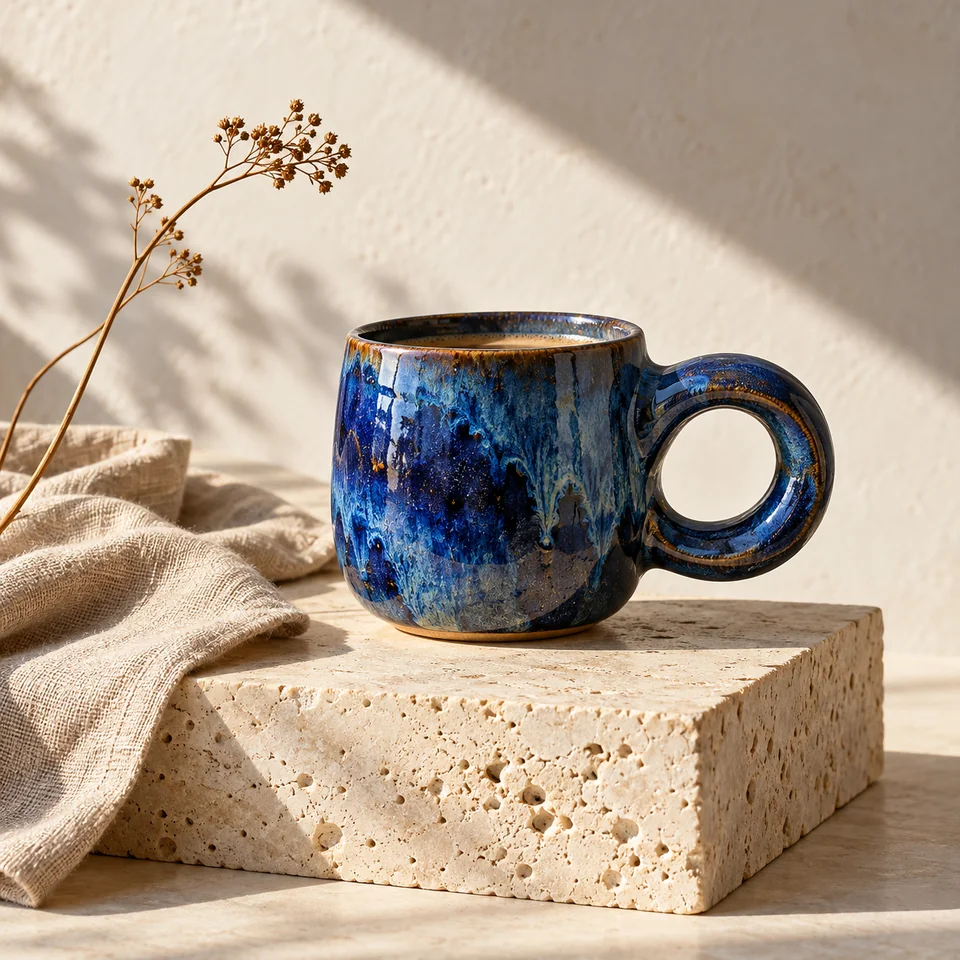
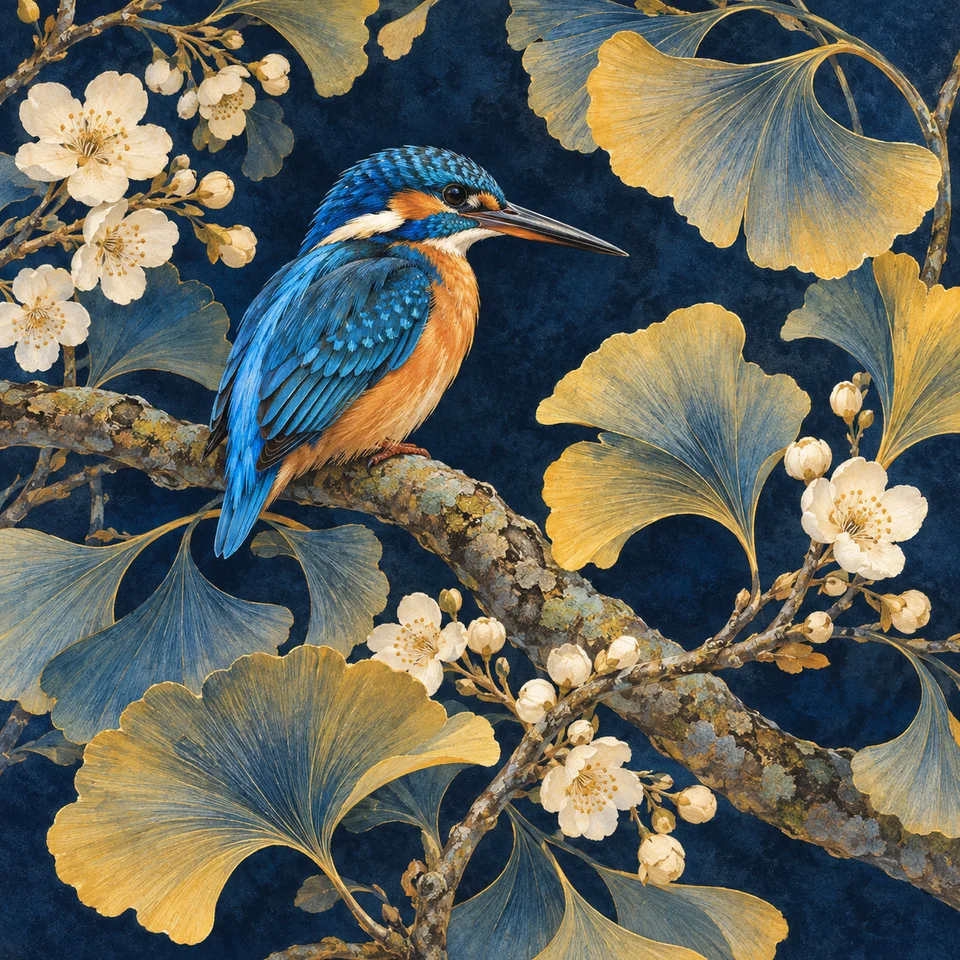
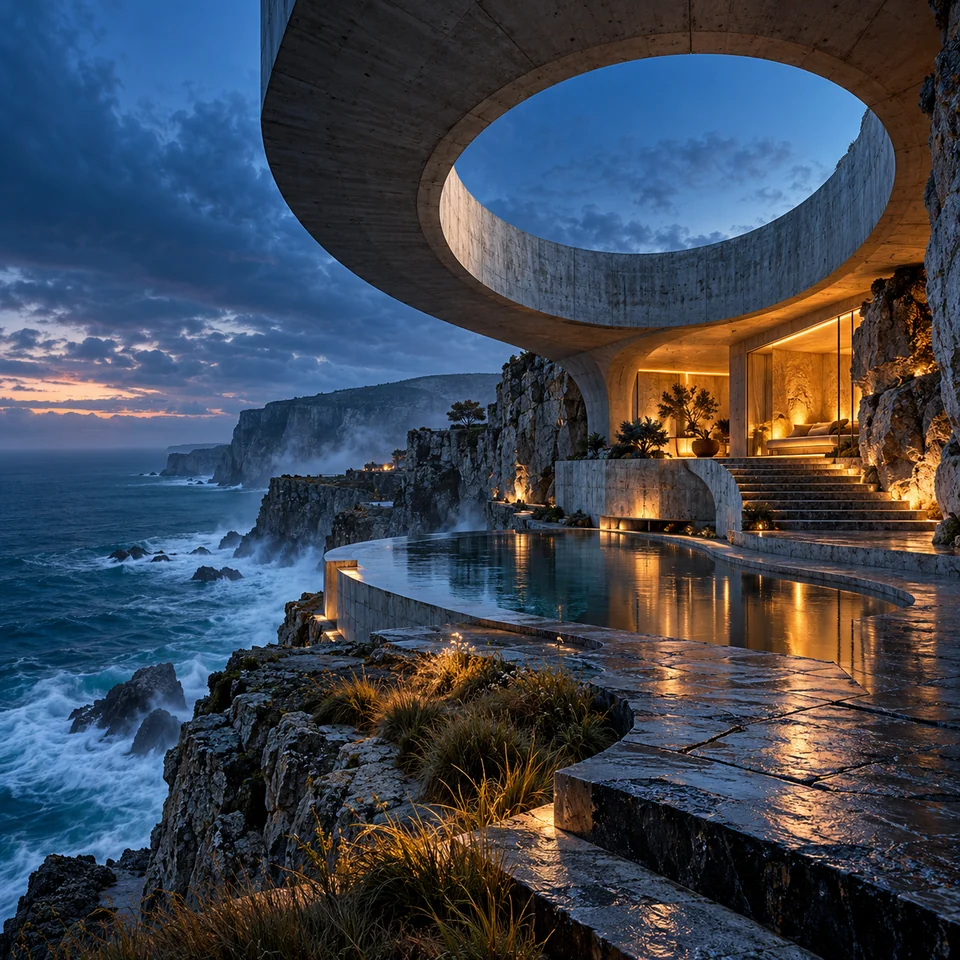
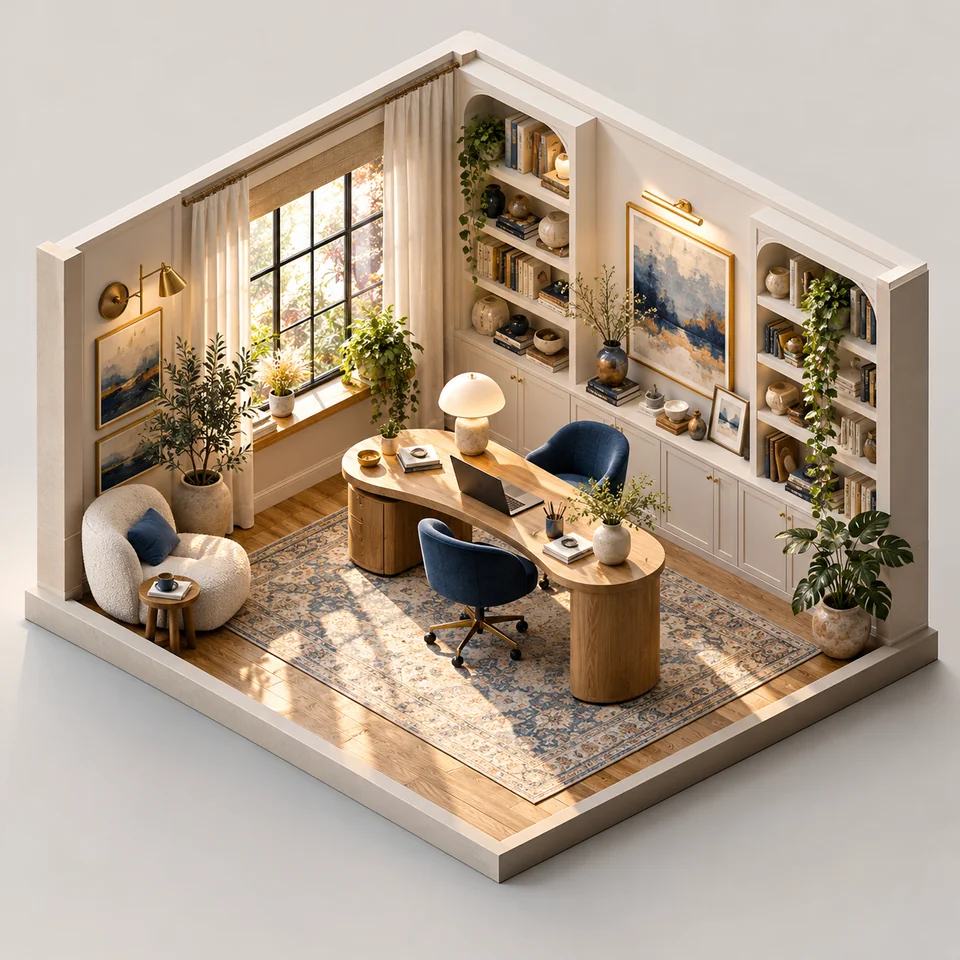
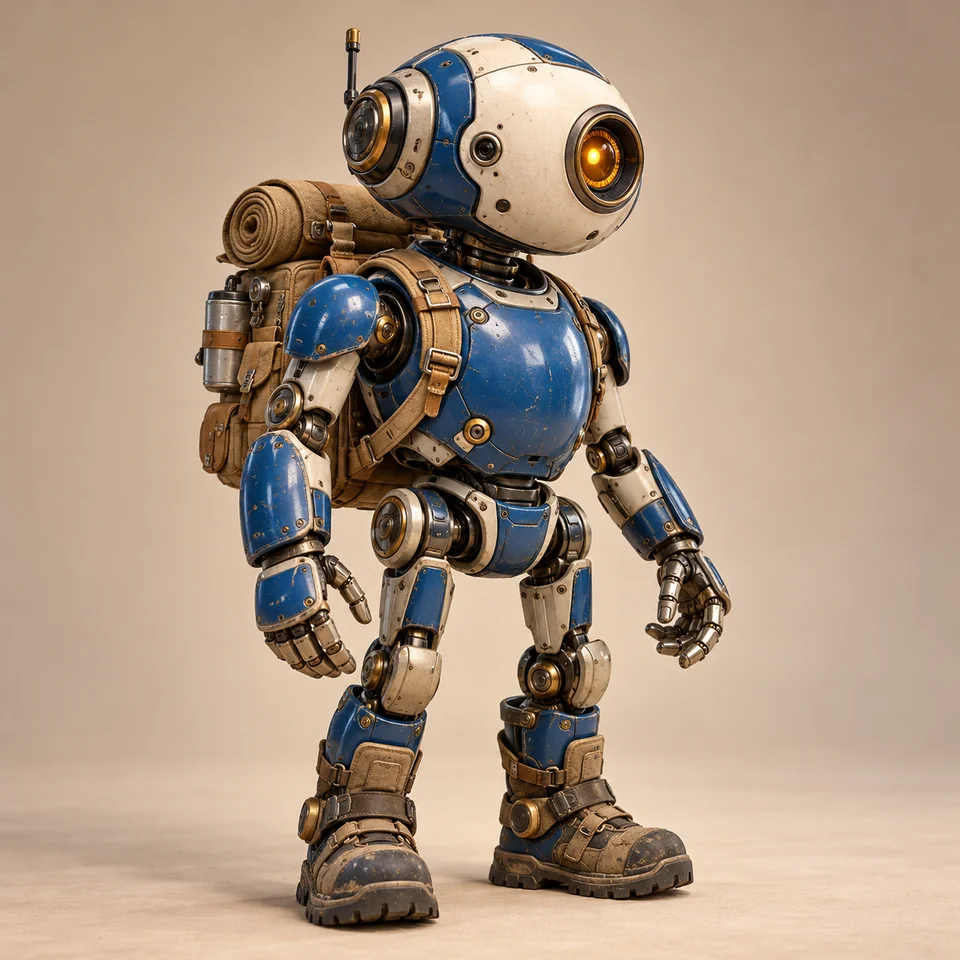
Original inspiration studies. Your results will vary with your prompt, model and settings.
Give your text-to-image prompt a clear subject. Then describe the material, setting or light that makes the image yours. A ceramic cup on a stone ledge gives you a different starting point from a cup floating in a painted sky.
Use a few concrete details to set the direction. Review the result, change your description and explore another version in the same workspace.
A cobalt-blue ceramic cup on pale travertine, warm window light, a linen napkin, editorial product photography.
A wide scene needs space around the subject. A portrait asks for a closer view. Choose a supported aspect ratio and resolution beside your prompt, with quality options where your model provides them.
Describe the composition as well as the subject: room for a headline, a centered object or an expansive horizon. Check the available settings when you switch models.
Bring your own image or open a result in the AI image editor for image-to-image refinement. Describe a new background, a different material or a change in mood. Add reference images where your selected model supports them.
Use the prompt to say what should change and what should stay. Review the result, then use it as a reference when you want to keep refining it.
Prepare your prompt in the browser, check the settings and estimated credits, then send it to start generation.
Start with the subject and the look you want. Add a reference if you want to edit an existing image, or use a text prompt to explore a new direction.
Pick a model, check its canvas options and estimated credits, then send your prompt to start generation. Sign in and make sure you have enough credits.
Use a result as a reference for another prompt, download a free watermarked export or use your paid plan for clean originals, or continue into 3D creation.
Explore a character or product concept before you take it into 3D. For a useful reference, ask for a complete subject, a clear silhouette and even lighting against a simple background.
Open the image you choose and use the existing 3D action to continue. You can also bring consistent views of the same object to multi-image creation. The images guide the process; the final geometry depends on your references and the 3D model you choose.
Practical answers about prompts, image editing and access.
Describe the picture you want: its subject, setting, visual style and details such as lighting or camera angle. Choose a model and its supported canvas settings, then send your prompt to start generation. With no reference attached, NovaGen3D creates from your text.
You can describe photographic scenes, illustrations, product concepts, characters or imagined spaces. Include the look you want in your prompt, such as natural-light photography, gouache illustration or a stylized 3D render. The model and your description affect the result; the gallery offers original inspiration rather than a promise of an identical image.
Yes, where the selected model supports them. Open the settings beside the prompt to choose a canvas and resolution. Quality controls also depend on the model. The available choices update when you change models, so use the settings shown in the composer for your current selection.
Yes. Attach a PNG, JPEG or WebP image to the prompt, then describe what you want to create or change. NovaGen3D uses attached images as references automatically. You can add more references where your model allows them; the first attachment sets the automatic canvas.
Attach the image and explain what should change and what should stay, such as keeping the subject while changing the background or lighting. Review the generated result before using it. A prompt describes your intent; it does not guarantee that every other detail stays identical.
Yes. You can generate images using models like GPT Image 2.5 Flare with available account credits without requiring a paid subscription. Watermarked downloads are completely free for all generated images. Upgrading to a paid plan unlocks advanced models and clean, unwatermarked exports.
You can prepare a prompt, choose settings and add reference images before signing in. GPT Image 2.5 Flare, GPT Image 2.5 Sunburst and GPT Image 2 are available to free accounts with enough credits. Other models require an active paid subscription as well as credits. Watermarked downloads are completely free, while clean unwatermarked downloads require an active paid subscription. Estimated credits appear beside the generate button.
Choose Download on a result card or open the image to choose your export option. Downloading with a subtle NovaGen3D watermark is completely free. Full-resolution, watermark-free downloads require an active paid subscription. Closing the plan dialog keeps your current images and prompt in place.
Yes. Open an image and choose Use image in 3D to continue with the existing image-to-3D tools. For multiple views, select up to four images of the same object with a consistent shape. A clear silhouette and even lighting give you a more useful reference; the image does not guarantee the final geometry.
Start with a subject, a setting or a detail you want to explore.